Showing posts with label events. Show all posts

Sitecore Publish Selected Sublayouts using WebDeploy

On our Multisite Sitecore instance, we have thousands of sublayouts. So, content authors or developers should be able to modify and publish selected sublayouts. Means, only selected sublayout should be deployed to CD servers along with the items.

We achieved this using Web Deploy, that can be configurable as guided is Sitecore Scalability Guide.

What approach we chose to conditionally sync Sublayouts?

  1. On CM environment, we have all sublayouts stored in a folder SiteSublayouts, now on publishing if sync this folder with CD server's relevant folder, then all sublayouts will get synced instead of just publishing the selected one. So, we applied an idea create another directory PublishedSublayouts on same level.
  2. So, on publishing a sublayout, it will be first copied from SiteSublayouts to PublishedSublayouts folder and then invoke WebDeploy. So,this will sync all sublayouts from PublishedSublayouts (Actually published or publishable sublayouts) to live server's SiteSublayouts folder.
Note: Here, we created SiteSublayouts and PublishedSublayouts folders outside the Webroot to ease of use.

How we implemented this approach?

  1. Configured WebDeploy settings in Sitecore. Enable App_Config\Include\Webdeploy.config file and do changes as below.
    <?xml version="1.0" encoding="utf-8" ?>
    <configuration>
      <sitecore>
        <events>
          <event name="publish:begin">
            <handler type="SitecoreTactics.SublayoutPublish, SitecoreTactics" method="SublayoutPublish">
              <tasks hint="list:AddTask">
                <default type="Sitecore.Publishing.WebDeploy.Task">
                  <!-- Publishing to the target database will trigger this deployment task. -->
                  <!-- You should prefer to write here first publishing target (if have multiple target DBs) -->
                  <targetDatabase>web</targetDatabase>
    
                  <!-- Target server is where we want to send sublayouts. If omitted, operation is performed on the local server. -->
                  <targetServer>x.x.x.x</targetServer>
    
                  <!-- userName and password are optional. If omitted, local user identity or credentials saved in Windows Vault will be used to connect to the server. -->
                  <userName>Administrator</userName>
                  <password>Password</password>
    
                  <!-- localRoot is optional. If omitted, the website root is used. -->
                  <localRoot>E:\CMS\Sitecore\PublishedSublayouts</localRoot>
    
                  <!-- remoteRoot is physical path where sublayouts are stored on remote server -->
                  <remoteRoot>E:\CMS\Sitecore\SiteSublayouts</remoteRoot>
                  
                  <!-- Paths, relative to the localRoot, which will be deployed to the remote location. -->
                  <items hint="list:AddPath">
                    <media>SiteSublayouts/</media>
                  </items>
                  
                </default>
              </tasks>
            </handler>
          </event>
        </events>
      </sitecore>
    </configuration>
    
    Here, we synced the PublishedSublayouts folder of CM server with relevant SiteSublayouts folder of CD server using Web Deploy. And we customized Sitecore's default WebDeploy handler for copying sublayouts mentioned in step 2. 
  2. Create a class as below by inheriting with Sitecore.Publishing.WebDeploy.PublishHandler as below. Here, when any sublayout is started publishing, on begin:publish event we defined in step 1, we copy the sublayout from SiteSublayouts folder to PublishedSublayouts folder and invoke WebDeploy as below code.
  3. namespace SitecoreTactics
    {
     public class SublayoutPublish : Sitecore.Publishing.WebDeploy.PublishHandler
     {
      string SourceFolder = "E:\CMS\Sitecore\SiteSublayouts";
      string DeployFolder = "E:\CMS\Sitecore\PublishedSublayouts";
    
      protected void DeploySublayout(object Sender, EventArgs args)
       {
       Item RootItem = ((Sitecore.Publishing.Publisher)(((Sitecore.Events.SitecoreEventArgs)(args)).Parameters[0])).Options.RootItem;
         if (RootItem.Paths.Path.ToLower().IndexOf("/sitecore/layout/sublayouts/") >= 0)
       {
        string sublayoutSourceFolder = SourceFolder + <Relative Path of the sublayout>;
        string sublayoutDeployFolder = DeployFolder + <Relative Path of the sublayout>;
    
        // Copy publishing sublayout to Deployable folder   
        File.Copy(sublayoutSourceFolder, sublayoutDeployFolder);
    
        // Invoke WebDeploy to sync published sublayouts
        base.OnPublish(Sender, args);
       }
      }
     }
    }
  4. We have multiple CM servers, so we replicated all these published sublayouts with help of DFS across all servers.
It's done! We can also use the same approach for publishing file based media items.

Very soon I will post few leanings we had after implementing sublayouts publishing!

Sitecore Intelligent Publish - The most optimized Approach


Sitecore publishing becomes headache for us when we have any of below situations:

- Sitecore application slows down due to frequent publication or frequent cache clearing.
- Publishing being queued for users due to slow & repetitive publishing.
- It is becoming difficult to monitor your publishing and related consequences.

There are FIVE thumb rules to get optimized publishing, which solves all above problems.
  • Stop frequent publishing
  • Publish only those items which are actually modified
  • Optimize publishing operations
  • Distribute load of publishing
  • Cache Tuning

Below is an approach described theoretically. I'll be posting its practical implementation soon!!

1. Use Intelligent Publish

Smart Publish and Republish both have their own pros & cons. Can't we produce an intelligent publish mechanism which can join all pros of both approaches and without getting their cons? This approach I named Intelligent Publish.

Smart Publish checks Publish Status of individual at time of publish, which play a bigger role in slowing down publishing. In it, only modified items will get published. In Intelligent Publish, we will list down which items to be published and then send these items to publishing . So, this will save much time at time of publish. Also, these items will be sent as Republish.

Intelligent Publish shares all pros of both approach without sharing cons. But yes, it is not easy to implement this approach. Below table shows difference between them.

Actions Republish Smart Publish Intelligent Publish
Operations on UI Site
1. Collect items Collect items Collect items Collect items with references
2. Filter Items NA NA Filter items which are to be published or excludes all items already published
Actual Publish Started and added to Publish Queue
3. Invoke Publish Invoke publish for all items Invoke publish for all items Invoke publish for all filtered items in Step - 2
4. Check Publish Status NA Yes NA (Already done in Step - 2)
5. Publish items Publishes all items Publish only modified items checked in Step - 4. Publishes only filtered items in Step - 2.

2. Use Publish Basket

It goes worst when user needs to select items and publish them one-by-one. Don't you think it increases client clicks and wastes time and frequency of publishing? Smart publish the site is also not a solution here.

To prevent this situations, we can allow users to use Publish Basket. Users can add n number of items in basket and send them to publish in one go. We might need to use an external DB to store basket items and send to publish. See below snap, shows mockup for Publish Basket.

Sitecore Publish Basket - Sitecore Tactics

3. Publish items with reference items

We can allow referenced items to get publish along with the selected publishable item. The references can be all referenced media as well as all items which are selected in fields like Multilist, subtree, etc.

This will reduce frequency of publishing, that will reduce frequency of clearing HTML cache.

4. Schedule Publish

Suppose, your client has to do publish after few hours for many items. Is it good that your client will remember the exact timings of publishing, say publishing at mid-night?

Now you feel, how important role the Scheduled Publish can play with Publish Basket functionality. We can allow user to do publish at specific date and specific time. See below snap, shows mockup for scheduling items.

Sitecore Scheduled Publish - Sitecore Tactics

5. Use Separate Publish Instance

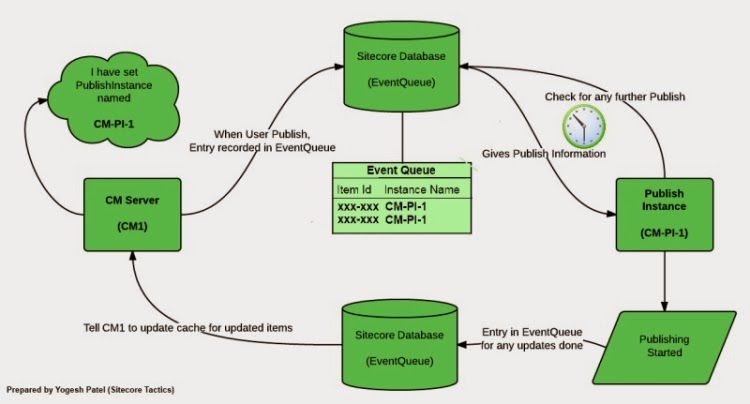
Using separate publish instance can give many benefits if we are getting slowness on CM server at time of publish. In this case, all load of heavy publish will be taken by PI and CM can work without worrying that much about Publishing going on.

Below snap shows how Publishing will work with a separate Publish Instance.


Read How to setup Sitecore Publish Instance.

6. Use Multiple Publish Instances

Are your clients complain about queue stuck up while publishing? You may have faced issues like many users have set publishing so important publishing gets queued for a long period of time.

To prevent this kind of situation, we can share load of publishing by having multiple publish instances. We have successfully implemented multiple PI and working great without any problems since July, 2012.

Read more about Multiple Publish Instances or Parallel Publish in Sitecore.

Must read posts for Sitecore Publish

- Sitecore Publishing Facts
- Setup Publish Instance
- Sitecore Parallel Publishing using Multiple Publish Instances

Some Sitecore Publishing Findings

Well, I do not want to waste your time in explaining how Sitecore publishing works, there are many blogs explaining What is publishing, publishing modes, ways to publish content, versions, target databases, etc. So, I would like to share some hidden secrets about Sitecore Publishing Mechanism, which I learn while exploring it.


Below are the questions mostly Sitecore developers always eager to know:

Why my publish fails or when publish:fail event is called?

While publishing any runtime error occurs like SQL Connectivity loss/Timeout, any SQL Exception, etc. the publish fails. The items already published, cannot be rollback and the items pending to publish needs to be published again. Means, Sitecore publishing does not maintain Transactions.

Check the publishing code from Sitecore.Publishing.Publisher.Publish. The code also contains comments which can explain how publishing works.
public virtual void Publish()
{
    object obj3;
    Monitor.Enter(obj3 = this.GetPublishLock()); // Locks the publishing. That's why publishing is a sequential process.
    try
    {
        using (new SecurityDisabler())
        {
            this.AssertState();
            this.NotifyBegin(); // Raises publish:begin event
            this.PerformPublish(); // Sends the current publish job to start publish
            this.NotifyEnd(); // Raises publish:end event
            this.UpdateLastPublish(); // Updates last publish date in source database
        }
    }
    catch (Exception exception)
    {
        // This function raises publish:fail event.
        this.NotifyFailure(exception);
        throw;
    }
    finally
    {
        Monitor.Exit(obj3);
    }
}

Why my publish expires or when publish:expire event is called?

You might get below configuration setting in web.config file.
     <setting name="Publishing.TimeBeforeStatusExpires" value="02:00:00"/>
If your publishing is taking more than time specified in the setting, the publishing job expires. Here, if your publishing job is taking more than 2 hours, it will get expired. Increasing its value to 5 or 10 hours can solve your problem of expiration if you have to publish thousands of items or heavy media items in one go.

Why my items not getting published?

There can be many reasons behind it:
  • The user publishing the item has not having its rights. Giving rights to the user can do publish.
  • When default/anonymous user's access rights are removed for the item or its parent. Giving rights to the user can do publish.
  • If still you cant find out issue, enable event timing level to high. Now, check logs on publish instance while doing publishing, this will log all events in details and help to identify the cause of problem in publish.
       <events timingLevel="high">
    
  • If you have set a publish instance, check Publish Instance is running or not. It should be up & running.
  • If it is not above case, and still publish not happening, then you need to enable eventqueue on CM as well as PI.
  • If first publish is going on after restart, it can be slow too. It needs to generate more cache and that's why it taking more time. Once cache generated, it will start publishing normally.

What are the reasons for slower publishing?


  • Publishing is a slower process by default as per its process. It requires a lot of processing time, so it consumes lots of CPU resources on Publish Instance. It needs constant updates on web database, so while publishing many insert, update or delete queries are executed. Many caches are cleared.
  • You are publishing many as well as heavy items (items with more size like media files)
  • Have you recently updates Access Viewer to give rights to any Role?
  • Have you checked your target database server is performing well? Checked its IOPS(Input/Output Operations Per Second)?
  • Many publishing or other jobs are in queue. Check below setting in your web.config on your PI.
    <setting name="MaxWorkerThreads" value="20" />
    
    This config determines how many worker threads can be running simultaneously. If your publishing or any other jobs have occupied these (in the example 20) threads, next queued job/publishing has to wait till it gets a free thread. Also, in this situation, your publishing might get stuck.

    You can increase its value as per need. Also remember, greater value can allow more jobs to execute, so may slow down the whole instance.

    You can use Publish Queue Viewer to know how many jobs are running on your instance on:
    - Sitecore Publish Queue Viewer - 1
    - Sitecore Publish Queue Viewer - 2

What can be the optimized publishing approach?

To get best performance with publishing, you might need to take care below things:
  • Proper Cache Tuning on PI as per need
  • Prevent frequent and long publishes
  • Allow Publish Basket facility, means adding media and other items' references
  • Allow scheduling publishing
I'll be posting regarding this very soon!!

How can I setup and use Sitecore Publish Instance?

Refer my earlier post regarding Publishing Scalability or Setting Publish Instance. This post describes how we can set separate Publish Instance and how it works.

Can I use multiple publish instance to support parallel publish?

Many have asked me the question, is it really possible to create Multiple Instances which can do publish parallel? The answer is YES. Although, Sitecore does not recommended this approach as per its architecture. But, Sitecore architecture is so scalable, we can still achieve it.

Refer my earlier post regarding Multiple Publish Instance or Parallel Publishing

Must read posts for Sitecore Publish

- Intelligent Publish in Sitecore - The most optimized approach
- Setup Publish Instance
- Sitecore Parallel Publishing using Multiple Publish Instances

Sitecore Multiple Publish Queue (Parallel Publishing)


Are you facing a long long queue stuck up with Sitecore publishing and clients are complaining a lot? Then surely you might have think about having multiple publish queue.

See my other post regarding Practical Implementation of Sitecore Parallel or simultaneous Publishing using multiple Publish Queue.

Benefits of Parallel Publishing:

  1. More than one user can do publishing simultaneously, so no more "Publishing Queued".
  2. Less load on CM environment, where actually users are editing or previewing pages as publishing load is now shared with Publish Instances.
  3. Less chances of Publish Queue stuck-up as Publish Jobs threads are now divided between multiple instances.
  4. If one publish instance is stuck-up, then we can move publishing traffic to another instance.

What is expected?

The expectation is to do parallel publishing on two or more Sitecore Instances. Say, our Content Authors' publish should go to PI-1 and clients' publish should go to PI-2. Or, Content Editor publish should go to PI-1 and Page Editor publish should go to PI-2.


This idea is quite possible and easier too. Let's see how can we use multiple publish queue. For that, you might need to understand How Sitecore Publish Instance works.

What is the Challenge?

As we see from the above link, Sitecore allows to add only one PublishInstance name, as per below setting so publishing will be done from that server itself.
        <setting name="Publishing.PublishingInstance">
           <patch:attribute name="value">CM-PI-1</patch:attribute>
        </setting>
So, the problem is well described in below image. See the red balloon points.
Ohhhh.... how to come out from this challenges, as Sitecore does not support this? Well, we have an alternate to overcome this issue.

Solution to Setup Multiple Publish Instances

As we seen, when Sitecore CM sets publish, it is recorded in EventQueue and then the related PI will pickup that publish and start publishing. Can't we do the same process by bypassing EventQueue? I mean we can prepare our own Event Queue.

So, that's really possible now. Also, don't worry about caching updates, means items updated/published on CM or PI-1 or PI-2 will get reflected on other servers immediately using Event Queue. So, our main concern should be publishing only.

There can be two different approaches to achieve this:
  1. Creating own table same as EventQueue
  2. By Invoking Web Service to start Publish

1. Creating own table same as EventQueue

  • We can create own table, which can have fields like below:

    Fields in MyPublishQueue
    ID
    ItemId
    SubItems
    Languages
    PublishType
    PublishInstance

    So, when user sets publish from CM, we will not start publish. We will just make entries in above table, with appropriate Publish Instance Name.
  • Now, both PI will have a our new Sitecore scheduler running. This scheduler should be triggered every few time interval as per our need, same as EventQueue checks. Write down some code to find any publishes for their own instance, and starts publish there itself. Refer Alex Shyba's blog to Create Sitecore Scheduler.

Below image shows how to achieve this approach. Here, as what we expect, Content Editor publish should go to PI-1 and Page Editor publish should go to PI-2, which is maintained by our Custom EventQueue table.

Parallel Sitecore Publish using custom EventQueue

This approach is very useful when we use for Scheduled Publish.

2. By Invoking Web Service to Start Publish

We can create a web service on both PIs, with input parameters as below:
  • ItemId
  • SubItems
  • Languages
  • PublishType (Smart/Republish)
This web service will do publish according to the passed items. So, when user sets publish from CM for PI-1 or PI-2, web service of respective PI should be invoked. So, publishing will be started by the webservice itself.
Below image shows how to achieve this approach.

Parallel Publish using WebService


This approach is very useful when we are not using Scheduled Publish.

Finally, you might be knowing how to start publishing using Sitecore. If No? See the code below:
public void PublishItem(Sitecore.Data.Items.Item item, User user)
{
 using(UserSwitcher(user))
 {
  // The publishOptions determine the source and target database,
  // the publish mode and language, and the publish date
  Sitecore.Publishing.PublishOptions publishOptions =
  new Sitecore.Publishing.PublishOptions(item.Database,
              Database.GetDatabase("web"),
              Sitecore.Publishing.PublishMode.SingleItem,
              item.Language,
              System.DateTime.Now);  // Create a publisher with the publishoptions
  Sitecore.Publishing.Publisher publisher = new Sitecore.Publishing.Publisher(publishOptions);

  // Choose where to publish from
  publisher.Options.RootItem = item;

  // Publish children as well?
  publisher.Options.Deep = true;

  // Do the publish!
  publisher.Publish();
 }
}

Note: Using multiple Publish Instance can be done with 3 Sitecore instances CM, PI-1 & PI-2. We can also do parallel publish with total two instances too CM & PI-1.

Sitecore does not recommend to have Multiple Publishing Instances. But, using above approaches, we implemented Parallel Publishing in 2012 with Sitecore 6.4.1, published millions of items with parallel publish, and still counting.

No need to say but having multiple Sitecore instances requires license accordingly.


No words to say about great Sitecore Architecture!!

Must read posts for Sitecore Publish

- Sitecore Publishing Facts
- Intelligent Publish in Sitecore - The most optimized approach
- Sitecore Setup Separate Publish Instance

Update Sitecore Item programmatically

There are two ways where you can put an item in editing mode and update its fields.

1. Sitecore.Data.Items.ItemEditing

2. Sitecore.Data.Items.EditContext (Deprecated)

If you are saving any item field without using above statements, it might give you exception that Item was not in Edit Mode. Let's see how we can update item

Sitecore.Data.Items.ItemEditing

See below code which allows to save any item.
    Sitecore.Data.Database masterDB = Sitecore.Configuration.Factory.GetDatabase("master");
    Sitecore.Data.Items.Item home = masterDB.GetItem("/sitecore/content/Home");

    //Begin Editing Sitecore Item
    home.Editing.BeginEdit();
    try
    {
        home["Title"] = "Title from Code Behind";

        // This will commit the field value
        home.Editing.EndEdit();
    }
    catch (Exception)
    {
        //Revert the Changes
        home.Editing.CancelEdit();
    }
This function has three variants, means it allows to item save in two different options.
item.Editing.EndEdit()
This save will actually do 3 steps:
  1. Save item
  2. Update item statistics, means updates Modified Date, Modified By User, etc. statistics information of item
  3. It will execute events related to Item Save.
item.Editing.EndEdit(updateStatistics, silent)
This save will allow us to choose which operations to do. This is going to save item same as above. But it will do update statistics or execute events or not depending on the parameters passed.

If we pass updateStatistics as false, it will not update Modified Date and Modified By fields. This is really useful when we need to update items in background. This will update item in read-only mode. If we pass true, then it will update this information.

If we pass silent as true, it will temporarily disable events. So, event this item's save will not be logged in EventQueue.

Below is the code to understand what EndEdit does:
public bool EndEdit()
{
    return this.EndEdit(true, false);
}

public bool EndEdit(bool updateStatistics, bool silent)
{
    bool flag2;
    bool readOnlyStatistics = this.m_item.RuntimeSettings.ReadOnlyStatistics;
    try
    {
        if (!updateStatistics)
        {
            this.m_item.RuntimeSettings.ReadOnlyStatistics = true;
        }
        if (!silent)
        {
            flag2 = ItemManager.SaveItem(this.m_item);
        }
        else
        {
            using (new EventDisabler())
            {
                flag2 = ItemManager.SaveItem(this.m_item);
            }
        }
    }
    finally
    {
        this.m_item.RuntimeSettings.ReadOnlyStatistics = readOnlyStatistics;
    }
    return flag2;
}

Sitecore.Data.Items.EditContext

Note: Sitecore EditContext is deprecated,  and Sitecore team recommends using ItemEditing (1st approach).

The above thing is also possible using Sitecore.Data.Items.EditContext in below manner:

Below is example of Sitecore item save using Default parameters. Here, updateStatistis is by default true and silent is false.
Sitecore.Data.Database masterDB = Sitecore.Configuration.Factory.GetDatabase("master");
Sitecore.Data.Items.Item home = masterDB.GetItem("/sitecore/content/Home");

//Begin Editing Sitecore Item
using (new EditContext(home))
{
    home["Title"] = "Title from Code Behind";
}
We can also pass parameters of updateStatistics and silent in EditContext like below example.
bool updateStatistics = false;
bool silent = true;
using (new EditContext(home,updateStatistics, silent))
{
    home["Title"] = "Title from Code Behind";
}
We can also pass parameters of checking security or not while updating the item like below.
using (new EditContext(home, SecurityCheck.Disable))
{
    home["Title"] = "Title from Code Behind";
}

Sitecore Event Queue - The Scalability King

Sitecore EventQueue architecture gives great scalability to Sitecore, launched with version 6.3. Enabling it can allows clustering of Content Management Servers (CMs) and Content Delivery Servers (CDs). It allows events on one server to be executed on other servers in a cluster.

Suppose, there are two instances of CM. Now, think how an item changed on CM1 will be reflected to CM2? There should be something like triggering mechanism to communicate both CMs. Event Queues are playing very important role to make both CMs synced.

How Event Queue works

  1. When any item is saved on CM1, "item:saved" event is executed, it creates an instance of Remote Event (SavedItemRemoteEvent).
  2. Now, the remote event is passed into Event Queue table in the respective Sitecore database. This event contains many things like Item Id, the Sitecore Instance Name on which event occured, Instance Type, Instance Data, User Name, date time when event occured, etc.
  3. Each Sitecore Instance has a trigger to check this event queue periodically and collects all events to be processed.
  4. All instances select events raised by other instances (Remote Events) like "item:saved:remote" and should be new or created after the instance's last processed event.
  5. Suppose, the CM2 finds an event of "SaveItemRemoteEvent", then it clears cache related to the item and update the data of that item. Similarly, each different type of event has its own operations to perform, which are specified in the web.config in pipelines.

According to this architecture, the CMs can have many instances in a cluster, theoretically n numbers of CM or CD instances can work very well in a cluster using EventQueue and gets updated all the time. :)

Configure  Event Queues

To enable EventQueues, from web.config, find EnableEventQueues setting. Set its value to true. This setting can also be set from \App_Config\Include\ScalabilitySettings.config, which will be given more precedence over web.config settings.
<!--  ENABLE EVENT QUEUES
If enabled, Sitecore sends local events to the event queue available to remote instances, 
and handles events in the queue from remote instances. -->
      <setting name="EnableEventQueues">
        <patch:attribute name="value">true</patch:attribute>
      </setting>
<!--  Event Queue's processing interval. 
Event Queue will be requested to process after below given interval -->
      <eventqueue>  
       <processinginterval>00:00:02</processinginterval>  
      </eventqueue>

Things to take care regarding Event Queue

  1. If we have more than one instances in an environment, it is must to EnableEventQueue on all the instances
  2. The processinginterval should be as minimum as we can set, say 2 seconds, so each server gets synced in no time.
  3. All CM instance should have exact time.
    If two instances have time difference of 5 minutes, then there the instance running late will get updates of other instance after 5 minutes, so sync will never be done between them.
  4. When events are not triggered on time on the remote(other) servers, clear the EventQueue table from database.

    Let's consider a practical case, once a user by mistake published 10k items and publishing is going on through PI. There are few others items queued after it, which are more important. Now, we found that we have to stop the 10k items' to give priority to other items. We have only one option to restart PI. But after PI restart, once we found once that those 10,000 items started publishing again (No one added them again)!! Ufff.. finally we came to know there was some issue with Event Queue processing/clearing. We cleared Event Queue and restarted PI again, now good to see, problem is solved. :)

Different events handled by EventQueue

Event Queue is used to make CMs in sync when item operations like Save, Creation, Deletion, Recycling, Restore, etc. happens. This sync happens with the help of Master database EventQueue.

Suppose, we have a separate PI to do publishing apart from a CM. Now, each publish set from the CM is done by PI, how? It is just because of Event Queues. CM sends an event for PI to do publish. So, PI will trigger the event and starts doing actual publish.

When items are published from CM or PI, CD should be notified when the publish is completed, CD starts clearing html cache accordingly. This happens by Event Queue on web database.

Great Sitecore Event Queue architecture!!