Showing posts with label cache. Show all posts

Things to remember while using CDN for Sitecore websites

We had many learnings while using CDN for our different types of Sitecore websites, so thought to share here, if get useful to others! Before that I want to share one of few interesting incidents that left a message to us for configuring CDN carefully.

We believe that Sitecore resolves the Site using host name from the request URL, so for serving media requests we do not need to forward cookies or any other parameters from CDN to Sitecore CD servers. That's very true, but partially. If you are thinking for providing the best user experience to end-users, you need to take care more than this.

Now, consider a case that a user is publishing a new Content Page that have few images related to it also got published on your one more Publihing Target Databases. First request of this page came to one of many clustered servers on the same time when your publishing got finished. What are the chances that all those images will be visible to that first view of the page, 100%? No, not at all. Let's see why.

You know that CDN manages sticky session using a cookie (i.e, AWSELB for AWS CloudFront). We normally need sticky session for content pages. So, we never forget forwarding Cookies from CDN to CD servers and don't do the same for media files as media files has nothing to do with Cookies. In such cases, the first request of content page went to a server i.e, A. But, the images might get served from different servers say B, C, etc. (as we set them not to carry cookies) and think the images are yet to get reflected on any of these servers due to publishing or caching delay of a second. So, content of the page will be served properly but images will return 404 and CDN will cache the response for few minutes. It means we are still leaving with chances that end-users will get disturbed page layout for few minutes. This also gets applied to Stylesheet or Javascript files as well if they are served from Sitecore items. We can fix the issue if we apply sticky session forwarding for media requests as well.

CDN Configurations for caching media files

  1. Forward Cookies those play role in maintaining sticky session (i.e. AWSELB cookiefor all media items (To fix above explained issue)
  2. Forward Querystrings (To support Media Querystring parameters explained here for responsive websites)
  3. Never cache such media files those are protected i.e, those have disclaimers. You can keep them in a separate media folder and apply rule not to cache such URL patterns.
  4. If your media items are getting changed rarely, keep bigger caching duration i.e, 1 hour, otherwise keep it little as 5 minutes. Or to get more accurate results, Instead of all above rules, you can also get benefits of 304 if-modified-since header to serve media requests.

CDN Configurations for caching content pages

  1. If it's a pure static site without any user logins or protections, you can serve the site without forwarding any parameter.
  2. If your site is developed for multi device support, you must forward Referrer and User-Agent request headers.
  3. If your site is having any kind of login facility or requires session or has cookie-oriented responsive or adaptive architecture, you must forward Cookies header.
  4. If you have implemented security based on IP Addresses, you must forward X-Forwarded-For header.
  5. If you have implemented Browser Based Content Negotiation, you must forward Accept, Accept-Language, etc. parameters.
  6. If you are using functionalities like personalization, secured content, etc. you can avoid content caching on CDN.
  7. Never cache HTML content served through other than GET request.

So, for getting best usage of CDN with best user experience, you must have knowledge how your website are developed and behaves.
Improve Sitecore Media Performance using Reverse Proxy

- Are you facing slowness in serving media library items?
- Are you getting increased response time due to media requests?
- Is your Sitecore instance serves media slower even if you have applied output (response) cache?

Then this post will surely help you, which describe how we can improve Sitecore Media Library performance by implementing Reverse Proxy Server.

How Reverse Proxy will help to improve media performance?

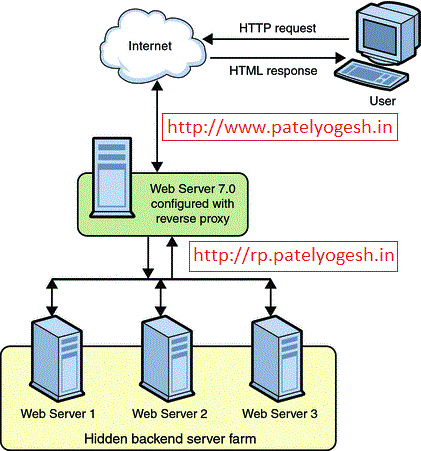
The Reverse Proxy will play a role being a proxy between the client and Sitecore web server. Reverse Proxy provides caching mechanism, which caches all media items. So, once any user has requested any media file from server, will be get cached on Reverse Proxy itself. So, from second time onwards, Reverse Proxy will not get media from Sitecore Web Server but will serve it from its own cache.

We can use URL Rewrite Module and Application Request Routing (ARR) to implement a Reverse Proxy Server.


Step - 1 : Install ARR and Url Rewrite on IIS?

  1. Setup IIS 7.0+ on your Server which will work as Proxy.
  2. Install URL Rewrite module. You can download it from here.
  3. Install ARR module. You can download it from here.

Step - 2 : Configure URL Rewrite module:

  1. Create a new Website in IIS or use Default website, and click on Website, then click on URL Rewrite option under IIS section
  2. Edit inbound rules as below:


    Above configuration shows that if requested host is www.patelyogesh.in, then this rule will be applied for its all requests (*).
  3. Configure Rewrite URL for above configurations as below. This will make sure that all requests coming from http://www.patelyogesh.in/ will be rewrited to http://rp.patelyogesh.in/*.


    When we apply above configurations, it will generate a web.config file under the website directory, which will look like below:

    <system.webServer>
        <rewrite>
          <rules>
             <rule name="Sitecore-Production" stopProcessing="true">
                 <match url="(.*)" />
                 <action type="Rewrite" url="http://rp.patelyogesh.in/{R:1}" />
                 <conditions>
                     <add input="{HTTP_HOST}" pattern="www.patelyogesh.in" />
                 </conditions>
             </rule>
          </rules>
        </rewrite>
      </system.webServer>
    

    We can also configure multiple domain's URL rewrites in the same way.

Step - 3 : Configure ARR (Application Request Routing) Cache

  1. Select the Server Node, now select Application Request Routing Cache option.

  2. Add Drive where the caching will be stored by ARR Module. The below image shows how we can configure ARR module and how it will look.
  3. Make sure the Identity user of the Application Pool should have read/write access of the drives configured here. So, ARR will store all cache files here only.

  4. Enable Proxy As per below image, click on Proxy Settings on the right side bar and enable Proxy.


Finally, Reverse Proxy setup finished, took just 15 minutes only!!

Now, Request to http://www.patelyogesh.in/. This will serve you content from http://rp.patelyogesh.in itself by traversing through Reverse Proxy. It's really easy and simple, isn't it?

How to confirm Reverse Proxy working fine?

We can provide our Custom Response Headers using Proxy Settings from ARR Cache option as shown in above image. So, if Reverse Proxy is working well, we will get those headers in response.

How to confirm ARR Caching working fine?

In File Explorer, open the Drive folder we configured in ARR Cache settings. We will get all files cached by ARR.

Cache for the URL: http://www.patelyogesh.in/~/media/Images/yogi.png (Rewrited URL: http://rp.patelyogesh.in/~/media/Images/yogi.png) will be stored at : <website root>\rp.patelyogesh.in\~\media\Images\yogi.png.full.

How to delete ARR cache programmatically?

In ARR Cache settings, you will find a button Delete Specific Cached Objects which can clear specific URL cache. It also supports wild cards for clearing cache.

We can create a web service on the ARR website, which will get a URL as input and will clear cache accordingly using below code. Now, on each media item publish from Sitecore, we will clear the ARR cache. We can decice How and when to make a call to the ARR web service to cache clear according to our architecture.

Source code to clear ARR cache programmatically:
[WebMethod]
public static ClearCache(string urlToCacheClear)
{
      var url = urlToCacheClear == "ALL" ? string.Empty : urlToCacheClear;

      var m = new ServerManager();
      var x = m.GetApplicationHostConfiguration().GetSection("system.webServer/diskCache");
      var method = x.Methods["FlushUrl"].CreateInstance();
      method.Input.SetAttributeValue("url", url);
      method.Execute();
}

Enjoy Reverse Proxy! Enjoy improved Sitecore Media Library performance!!

Good reads on Reverse Proxy:
- http://www.agarwalnishant.com/2013/04/improve-sitecore-media-library.html

- http://www.iis.net/learn/extensions/url-rewrite-module/reverse-proxy-with-url-rewrite-v2-and-application-request-routing

How Sitecore media cache Works?

Sitecore stores all media cache to file system, unlike all other caches, stored in RAM. Media items are stored in database, so media cache is required to reduce database calls and serve media files faster to end-user. Let's understand Sitecore media cache mechanism.

How Media Cache Created?

- When we upload a new media file to Sitecore, its media cache is created in Website\App_Data\MediaCache\<sitename>\<Hashcode of MediaId> folder. Sitecore assigns unique MediaId to each media item, which gets changed on each modification of media item.

- For each media item, Sitecore creates an INI file with name of MediaId in the respective folder, which stores different attributes of the media file inside it.

See below image as a reference:


In above case, this media's MediaId is "8c683332453741038b8876bf5915d188", so the ini file (8c683332453741038b8876bf5915d188.ini) is generated with name of MediaId. On right side, all information is stored in same file. dataFile shows physical media file name 7b4a5e3934914d57a390bedcab67380c.jpg.

Different attributes in INI file:
Attribute Description
Key height, width, thumbnail, background color, etc. image parameters passed by query string. You can get better idea by reading my earlier Blog Post on Sitecore Image Control Parameters
extension Extension of  media file.
headers Content Type, etc.
datafile Physical file name stored as media cache in same folder.

How Media Cache Deleted?

Sitecore provides a cleanup agent to clear older media files, which clears media files every specified interval of time. By default it clears all media cache files created 90 days ago. See below settings in web.config:
    
     <agent type="Sitecore.Tasks.CleanupAgent" method="Run" interval="06:00:00">
        <!-- Specifies files to be cleaned up.
             If rolling="true", [minCount] and [maxCount] will be ignored.
             [minAge] and [maxAge] must be specified as [days.]hh:mm:ss. The default value
             of [minAge] is 30 minutes.
             [strategy]: number of files within hour, day, week, month, year
             [recursive=true|false]: descend folders?
        -->
        <files hint="raw:AddCommand">
          <remove folder="/App_Data/MediaCache" pattern="*.*" maxAge="90.00:00:00" recursive="true" />
        </files>
      </agent> 

Media Cache Hidden Secrets

  • If a user has requested a media file with different querystring parameters, then Sitecore creates different media files runtime and stores all those files in same folder where original media file is stored. Also, all these combinations are stored in the same INI file itself.

    You can try accessing your media image with different parameters like below and check media cache:
    -http://sitecoreblog.patelyogesh.in/~/media/Images/myimage.jpg
    -http://sitecoreblog.patelyogesh.in/~/media/Images/myimage.jpg?h=100
    -http://sitecoreblog.patelyogesh.in/~/media/Images/myimage.jpg?w=200
  • When a media item is updated, Sitecore creates a new media cache with new INI file and a new media file even though the media file(blob) remains same or item already has same media cache. So, there will be duplicate media cache but Sitecore will refer to latest file only.
  • As we know Sitecore creates media cache in folder with name of Context Site. So, if one media file is accessed by two different Sites (SiteContext), then media cache will be generated for both sites, means in both sites' folders. For example, When media item is accessed by Content Editor, cache will be created for Shell site and when accessed by Website, then it will be created for Website.

How to read/create media cache programatically?

Yes, it's possible to create or read media cache by Sitecore API:
    
    ///////////////////////////////////
    // Read Media Cache
    ///////////////////////////////////

    MediaRequest request; // media parameters like height, width, etc.
    Sitecore.Resources.Media.Media media // item for which you want to read media cache.

    // set request.Options
    // set media

    // This is the media cache stored in MediaStream
    MediaStream mStream = MediaManager.Cache.GetStream(media, request.Options);


    ///////////////////////////////////
    // Write Media Stream to Media Cache
    ///////////////////////////////////

    // Manipulate your media file and set it into MediaStream

    // store the media stream to media cache.
    MediaManager.Cache.AddStream(media, request.Options, mStream, out outStream);

We can know more about Media Cache understanding below classes using Reflector:
- Sitecore.Resources.Media.MediaCache
- Sitecore.Resources.Media.MediaCacheRecord

Show PDF Thumbnail as Icon in Content Editor

Sitecore shows PDF icon as a thumbnail, so it becomes very difficult to find out a PDF file from a big list of uploaded files. Just imagine, life would be so easy when Sitecore provides PDF thumbnails as the icons just like images!!

It is quite possible and easy to show PDF thumbnails in different dimensions just by overriding the MediaRequestHandler of Sitecore. See my earlier post, PDF Thumbnail Handler blog. You can also find PDF Thumbnail Handler on Sitecore MarketPlace.

Use of PDF Thumbnails Handler

Once the concept of PDF Thumbnail Handler is understood, we can achieve this easily. Do following:
  1. Install PDF Thumbnail Handler to your Sitecore and make it up and running.
  2. Update PDF item's Icon field. Replace ~/media to ~/mediathumb
  3. Now, check Sitecore Content Editor will show PDF thumbnails as icons.
By default PDF icons are available as below image:

Sitecore shows PDF icon as thumbnail
The Icon has value: ~/media/36C02213E38441D9BA1AA82DB86A80E0.ashx?h=16&thn=1&w=16, which will load icon of PDF which is defined in the sitecore itself.

As per PDF Thumbnail Creation Handler, by using ~/mediathumb handler by updating its value to: ~/mediathumb/36C02213E38441D9BA1AA82DB86A80E0.ashx?h=16&thn=1&w=16. See below image which shows how PDF thumbnail is shown as icon.


We can show PDF thumbnail as icon like this


 Let's make PDF thumbnails working in Content Editor

Our requirement is to show thumbnails like below image:

Show PDF thumbnails by overriding MediaProvider


Override MediaProvider of Sitecore, for that you need to do changes in web.config file.
   <!-- override Sitecore MediaProvider -->
   <mediaProvider type="SitecoreTactics.MediaProvider, SitecoreTactics"/>

Below is the code required in MediaProvider class. In the GetMediaUrl function, when the request of any PDF file is there, then replace existing ~/media/ handler with ~/mediathumb/.
namespace SitecoreTactics
{
    public class MediaProvider: Sitecore.Resources.Media.MediaProvider
    {
        public override string GetMediaUrl(MediaItem item, MediaUrlOptions options)
        {
            string mediaUrl;
            mediaUrl = base.GetMediaUrl(item, options);

            // When item is PDF and Thumbnail is requested
            if (item.Extension == "pdf" && options.Thumbnail)
                mediaUrl = mediaUrl.Replace(Config.MediaLinkPrefix, "~/mediathumb/");

            return mediaUrl;
        }
    }
}


Wow, let's enjoy easier life with PDF thumbnails in Content Editor!!

Related Posts:
- PDF Thumbnail Handler
- Sitecore HTTP Custom Handler

PDF Thumbnail Creation Handler in Sitecore

I recently published a Sitecore Marketplace module PDF Thumbnail Creater Handler. Basically it allows to generate thumbnail on-the-fly (dynamically) for the uploaded PDF in sitecore by passing width and/or height. This will allow user to request thumbnail for any height or width and the thumbnail will be stored as a media cache in Sitecore.

Requirement

Suppose user uploaded PDF in Sitecore.
  • User want to generate thumbnails of the fist page of uploaded PDF. 
  • User can choose height and/or width of thumbnails without any configurations.
  • If user replaces a new file instead of that PDF, it should serve thumbnail of newly uploaded PDF. 
  • Similarly the thumbnail URL should work if user moves/copies/deletes the PDF item.
  • Finally, the conversion process should be scalable and quick enough so it does not affect performance and the thumbnails should be cached as media cache too

Below are the outputs of same PDF but different size thumbnails: 

PDF Thumb Original
http://sitecore/~/mediathumb/Files/MyPDF.pdf
PDF Thumb Width=300
http://sitecore/~/mediathumb/Files/MyPDF.pdf?w=300
PDF Thumb Width=150
http://sitecore/~/mediathumb/Files/MyPDF.pdf?w=150

Theoretical Concept

I just thought to achieve this overriding Sitecore MediaRequestHandler. Sitecore allows to generate different sized thumbnails of uploaded image files, See how. Why should not I use the same concept to generate thumbnails from PDF? Only concern I looked was to convert PDF to JPG only, but was not that much easy. 

So, what I wanted to achieve:
 
PDF / Thumbnail Details PDF / Thumbnail Path/URL
PDF Sitecore Path /sitecore/media library/Files/MyPDF
PDF URL http://sitecore/~/media/Files/MyPDF.pdf
PDF Thumbnail URL http://sitecore/~/mediathumb/Files/MyPDF.pdf
or
http://sitecore/~/mediathumb/Files/MyPDF.jpg
PDF Thumbnail URL
Width = 100 px
http://sitecore/~/mediathumb/Files/MyPDF.pdf?w=100
PDF Thumbnail URL
Height = 200 px
http://sitecore/~/mediathumb/Files/MyPDF.pdf?h=200
PDF Thumbnail URL
Width = 100 px
Height = 200 px
http://sitecore/~/mediathumb/Files/MyPDF.pdf?w=100&h=200

How this achieved

PDF to JPG conversion can be done using GhostScript (With GPL License, which is free), which is very efficient and gives flexibility with many other options.

You can read my older post regarding Sitecore Custom HTTP Handler, I have described there in detail.

I created own Sitecore Custom Handlers (SitecoreTactics.ThumbnailManager.PDFThumbnailRequestHandler) to generate thumbnails of media(PDF) items. See below config changes this requires:
    
<configuration xmlns:patch="http://www.sitecore.net/xmlconfig/">
  <sitecore>

    <!-- Define Custom Handler -->
    <customHandlers>
      <handler trigger="~/mediathumb/" handler="sitecore_media_thumb.ashx"  />
    </customHandlers>

    <!-- Define Media Prefix -->
    <mediaLibrary>
      <mediaPrefixes>
        <prefix value="~/mediathumb" />
      </mediaPrefixes>
    </mediaLibrary>
  </sitecore>


  <!-- Define Web Handler -->
  <system.webServer>
 <handlers>
     <add verb="*" path="sitecore_media_thumb.ashx" type="SitecoreTactics.ThumbnailManager.PDFThumbnailRequestHandler, SitecoreTactics.ThumbnailManager" name="SitecoreTactics.PDFThumbnailRequestHandler"/>
 </handlers>
  </system.webServer>
</configuration>    
Handler's source code to process thumbnail and use media cache as below.
namespace SitecoreTactics.ThumbnailManager
{
    public class PDFThumbnailRequestHandler : Sitecore.Resources.Media.MediaRequestHandler
    {
        protected override bool DoProcessRequest(HttpContext context)
        {
            Assert.ArgumentNotNull(context, "context");
            MediaRequest request = MediaManager.ParseMediaRequest(context.Request);

            if (request == null)
                return false;

            Sitecore.Resources.Media.Media media = null;
            try
            {
                media = MediaManager.GetMedia(request.MediaUri);
                if (media != null)
                    return this.DoProcessRequest(context, request, media);
            }
            catch (Exception ex)
            {
                Log.Error("PDF Thumbnail Generator error - URL:" + context.Request.Url.ToString() + ". Exception:" + ex.ToString(), this);
            }

            if (media == null)
            {
                context.Response.Write("404 - File not found");
                context.Response.End();
            }
            else
            {
                string itemNotFoundUrl = (Context.Site.LoginPage != string.Empty) ? Context.Site.LoginPage : Settings.NoAccessUrl;

                if (Settings.RequestErrors.UseServerSideRedirect)
                    HttpContext.Current.Server.Transfer(itemNotFoundUrl);
                else
                    HttpContext.Current.Response.Redirect(itemNotFoundUrl);
            }
            return true;
        }

        protected override bool DoProcessRequest(HttpContext context, MediaRequest request, Sitecore.Resources.Media.Media media)
        {
            Assert.ArgumentNotNull(context, "context");
            Assert.ArgumentNotNull(request, "request");
            Assert.ArgumentNotNull(media, "media");

            if (this.Modified(context, media, request.Options) == Sitecore.Tristate.False)
            {
                Event.RaiseEvent("media:request", new object[] { request });
                this.SendMediaHeaders(media, context);
                context.Response.StatusCode = 0x130;
                return true;
            }

            // Gets media stream for the requested media item thumbnail
            MediaStream stream = ProcessThumbnail(request, media);
            if (stream == null)
            {
                return false;
            }
            Event.RaiseEvent("media:request", new object[] { request });
            this.SendMediaHeaders(media, context);
            this.SendStreamHeaders(stream, context);
            using (stream)
            {
                context.Response.AddHeader("Content-Length", stream.Stream.Length.ToString());
                WebUtil.TransmitStream(stream.Stream, context.Response, Settings.Media.StreamBufferSize);
            }
            return true;
        }

        private MediaStream ProcessThumbnail(MediaRequest request, Sitecore.Resources.Media.Media media)
        {
            MediaStream mStream = null;
            
            ParseQueryString(request);

            mStream = MediaManager.Cache.GetStream(media, request.Options);

            if (mStream == null)
            {
                string tempPath = Settings.TempFolderPath + "/PDF-Thumbnails/";

                tempPath = MainUtil.MapPath(tempPath);

                if (!Directory.Exists(tempPath))
                    Directory.CreateDirectory(tempPath);

                // Prepare filenames
                string pdfFile = tempPath + media.MediaData.MediaId + ".pdf";
                string jpgFile = tempPath + media.MediaData.MediaId + ".jpg";

                string resizedJpgFile = tempPath + media.MediaData.MediaId + "_" + request.Options.Width.ToString() + "_" + request.Options.Height.ToString();

                if (!File.Exists(jpgFile))
                {
                    // Save BLOB media file to disk
                    MediaConverter.ConvertMediaItemToFile(media.MediaData.MediaItem, pdfFile);

                    // Convert PDF to Jpeg - First Pager
                    MediaConverter.ConvertPDFtoJPG(pdfFile, 1, jpgFile);

                }

                // Resize Image
                MediaConverter.ReSizeJPG(jpgFile, resizedJpgFile, request.Options.Width, request.Options.Height, true);

                // Convert resized image to stream
                MediaStream resizedStream = new MediaStream(File.Open(resizedJpgFile, FileMode.Open, FileAccess.Read, FileShare.Read), "jpg", media.MediaData.MediaItem);

                // Add the requested thumbnail to Media Cache
                MediaStream outStream = null;
                MediaManager.Cache.AddStream(media, request.Options, resizedStream, out outStream);

                if (outStream != null)
                {
                    // If Media cache is enabled
                    return outStream;
                }

            }

            // If Media cache is disabled
            return mStream;
        }

        public void ParseQueryString(MediaRequest mediaRequest)
        {
            HttpRequest httpRequest = mediaRequest.InnerRequest;

            Assert.ArgumentNotNull((object)httpRequest, "httpRequest");
            string str1 = httpRequest.QueryString["as"];
            if (!string.IsNullOrEmpty(str1))
                mediaRequest.Options.AllowStretch = MainUtil.GetBool(str1, false);
            string color = httpRequest.QueryString["bc"];
            if (!string.IsNullOrEmpty(color))
                mediaRequest.Options.BackgroundColor = MainUtil.StringToColor(color);

            string str2 = httpRequest.QueryString["dmc"];

            mediaRequest.Options.Height = MainUtil.GetInt(httpRequest.QueryString["h"], 0);
            string str3 = httpRequest.QueryString["iar"];
            if (!string.IsNullOrEmpty(str3))
                mediaRequest.Options.IgnoreAspectRatio = MainUtil.GetBool(str3, false);

            mediaRequest.Options.MaxHeight = MainUtil.GetInt(httpRequest.QueryString["mh"], 0);
            mediaRequest.Options.MaxWidth = MainUtil.GetInt(httpRequest.QueryString["mw"], 0);
            mediaRequest.Options.Scale = MainUtil.GetFloat(httpRequest.QueryString["sc"], 0.0f);
            string str4 = httpRequest.QueryString["thn"];
            if (!string.IsNullOrEmpty(str4))
                mediaRequest.Options.Thumbnail = MainUtil.GetBool(str4, false);

            mediaRequest.Options.Width = MainUtil.GetInt(httpRequest.QueryString["w"], 0);
        }
    }
}

You can get full source code (of older version) of this module from Sitecore Marketplace.
Update:
Module available on Sitecore Marketplace contains older code, having a bug on media cache that when someone overwrite media files (using detach/attach), it was serving older thumbnail. This bug has been fixed in above code, and will be available on marketplace very soon. Meanwhile, you can download the source code (excluding DLLs) from https://drive.google.com/file/d/0B1otw7vE3rGTQmU1U1l2TTJHQTA/view?usp=sharing:

Benefits of this approach

  1. Dynamic conversion of PDF to Thumbnail when requested
  2. Allows to convert different size thumbnails
  3. Repeated thumbnails will be served from media cache.
  4. Conversion is fast using GhostScript and media cache adds more power.


Related Posts:
- Show PDF Thumbnail Icons in Content Editor
- Sitecore HTTP Custom Handler

Save Sitecore Media Item to Disk file

Once we required to convert the Sitecore Media Item to a disk file (Save media item as a physical file on server). Sitecore does not provide any API to do this directly.

Below is the code to do it, thought to post it if can help others..
    string mediaItemPath = "/sitecore/media library/Images/myimage";
    string diskFolderPath = @"D:\Sitecore-Media\";

    MediaItem mediaItem = (MediaItem)Sitecore.Context.Database.GetItem(mediaItemPath);
    ConvertMediaItemToFile(mediaItem, diskFolderPath);


    public static void ConvertMediaItemToFile(MediaItem mediaItem, string folderName)
    {
        if (mediaItem.InnerItem["file path"].Length > 0)
            return;

        string fileName = folderName + mediaItem.Name + "." + mediaItem.Extension;

        var blobField = mediaItem.InnerItem.Fields["blob"];
        Stream stream = blobField.GetBlobStream();
        if (stream == null)
        {
            return;
        }

        string relativePath = Sitecore.IO.FileUtil.UnmapPath(fileName);
        try
        {
            SaveToFile(stream, fileName);
            stream.Flush();
            stream.Close();
        }
        catch (Exception ex)
        {
            Log.Error(string.Format("Cannot convert BLOB stream of '{0}' media item to '{1}' file", mediaItem.MediaPath, relativePath));
        }
    }

    private static void SaveToFile(Stream stream, string fileName)
    {
        byte[] buffer = new byte[8192];
        using (FileStream fs = File.Create(fileName))
        {
            int length;
            do
            {
                length = stream.Read(buffer, 0, buffer.Length);
                fs.Write(buffer, 0, length);
            }
            while (length > 0);

            fs.Flush();
            fs.Close();
        }
    }


Sitecore media and browser cache

Have you ever faced issues like your media items are not getting reflected to your page or you are still referring to older media files after media publish? Or your media files are not getting cached when accessing through revere proxy? Or your media files are not getting cached on browser level? Here is the solution in Sitecore itself, that is using Media Response Cacheability.

Media response cacheability is served using cache-control header, read more on topic 14.9 regarding cache-control header.

In web.config, you can define media response cacheability options in settings section like below:
    <!--  MEDIA RESPONSE - CACHEABILITY
    The HttpCacheability is used to set media response headers.
    Possible values: NoCache, Private, Public, Server, ServerAndNoCache, ServerAndPrivate
    Default value: public-->

    <setting name="MediaResponse.Cacheability" value="public" />

Here are six different settings to define media response headers, using which Sitecore manages media on client or browser level caching:


Media Cacheability Option Description
NoCache Browser cache is not created while using this option, so, every time media is served from server to device. This is not a good idea, when you want to improve performance by serving media files faster. This will slow down page speed.
Private This option allows browsers to store media cache. But, the response is cacheable only on the client and not by shared (proxy server) caches. Suppose, the ISP is having a invisible proxy between user and internet, then the user can not get benefit of media caching.
Public On step ahead than Private, using this option, response is cacheable by clients and shared (proxy) caches. So, anybody can use its caching mechanism. This option is mostly preferred to get optimum performance gain.
Server The response is cached only at the origin server. Similar to the NoCache option. Clients receive a Cache-Control: no-cache directive but the document is cached on the origin server. Equivalent to ServerAndNoCache.
ServerAndNoCache Applies the settings of both Server and NoCache to indicate that the content is cached at the server but all others are explicitly denied the ability to cache the response.
ServerAndPrivate Indicates that the response is cached at the server and at the client but nowhere else. Proxy servers are not allowed to cache the response.


Let's go back to solve these problems.
1. Media files are not getting cached?
    - Use public or private depending on your need, described above.

2. Caching is on from Sitecore, still cache is not getting generated on device or browser.
    - Chances are use of any proxy before reaching to you. Check, your settings might be set as Private. Set it as Public.

Sitecore Intelligent Publish - The most optimized Approach


Sitecore publishing becomes headache for us when we have any of below situations:

- Sitecore application slows down due to frequent publication or frequent cache clearing.
- Publishing being queued for users due to slow & repetitive publishing.
- It is becoming difficult to monitor your publishing and related consequences.

There are FIVE thumb rules to get optimized publishing, which solves all above problems.
  • Stop frequent publishing
  • Publish only those items which are actually modified
  • Optimize publishing operations
  • Distribute load of publishing
  • Cache Tuning

Below is an approach described theoretically. I'll be posting its practical implementation soon!!

1. Use Intelligent Publish

Smart Publish and Republish both have their own pros & cons. Can't we produce an intelligent publish mechanism which can join all pros of both approaches and without getting their cons? This approach I named Intelligent Publish.

Smart Publish checks Publish Status of individual at time of publish, which play a bigger role in slowing down publishing. In it, only modified items will get published. In Intelligent Publish, we will list down which items to be published and then send these items to publishing . So, this will save much time at time of publish. Also, these items will be sent as Republish.

Intelligent Publish shares all pros of both approach without sharing cons. But yes, it is not easy to implement this approach. Below table shows difference between them.

Actions Republish Smart Publish Intelligent Publish
Operations on UI Site
1. Collect items Collect items Collect items Collect items with references
2. Filter Items NA NA Filter items which are to be published or excludes all items already published
Actual Publish Started and added to Publish Queue
3. Invoke Publish Invoke publish for all items Invoke publish for all items Invoke publish for all filtered items in Step - 2
4. Check Publish Status NA Yes NA (Already done in Step - 2)
5. Publish items Publishes all items Publish only modified items checked in Step - 4. Publishes only filtered items in Step - 2.

2. Use Publish Basket

It goes worst when user needs to select items and publish them one-by-one. Don't you think it increases client clicks and wastes time and frequency of publishing? Smart publish the site is also not a solution here.

To prevent this situations, we can allow users to use Publish Basket. Users can add n number of items in basket and send them to publish in one go. We might need to use an external DB to store basket items and send to publish. See below snap, shows mockup for Publish Basket.

Sitecore Publish Basket - Sitecore Tactics

3. Publish items with reference items

We can allow referenced items to get publish along with the selected publishable item. The references can be all referenced media as well as all items which are selected in fields like Multilist, subtree, etc.

This will reduce frequency of publishing, that will reduce frequency of clearing HTML cache.

4. Schedule Publish

Suppose, your client has to do publish after few hours for many items. Is it good that your client will remember the exact timings of publishing, say publishing at mid-night?

Now you feel, how important role the Scheduled Publish can play with Publish Basket functionality. We can allow user to do publish at specific date and specific time. See below snap, shows mockup for scheduling items.

Sitecore Scheduled Publish - Sitecore Tactics

5. Use Separate Publish Instance

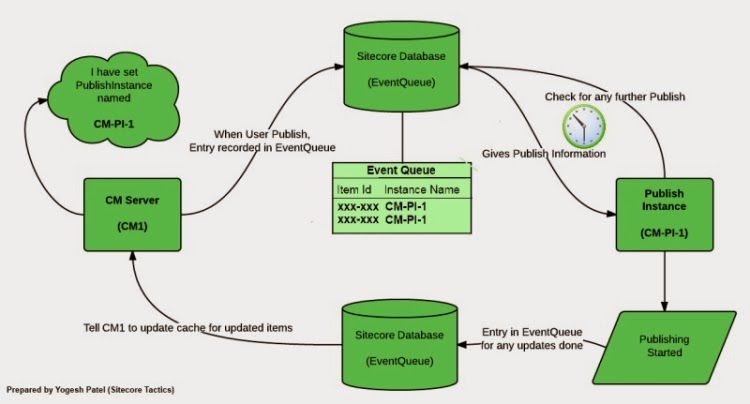
Using separate publish instance can give many benefits if we are getting slowness on CM server at time of publish. In this case, all load of heavy publish will be taken by PI and CM can work without worrying that much about Publishing going on.

Below snap shows how Publishing will work with a separate Publish Instance.


Read How to setup Sitecore Publish Instance.

6. Use Multiple Publish Instances

Are your clients complain about queue stuck up while publishing? You may have faced issues like many users have set publishing so important publishing gets queued for a long period of time.

To prevent this kind of situation, we can share load of publishing by having multiple publish instances. We have successfully implemented multiple PI and working great without any problems since July, 2012.

Read more about Multiple Publish Instances or Parallel Publish in Sitecore.

Must read posts for Sitecore Publish

- Sitecore Publishing Facts
- Setup Publish Instance
- Sitecore Parallel Publishing using Multiple Publish Instances

How to speed up Sitecore application startup?

Is your Sitecore application having slow start-up time and want to improve it? The main reason behind slowness is bigger Prefetch Cache. Application's startup time is directly proportional to size of Prefetch Cache set.

If you set Bigger Prefetch, it gives slow startup, but it can give you better performance while opening Content Editor or Page Editor because your items' data are already fetched from Database to Prefetch Cache.

In reverse, if you get Smaller Prefetch, it gives fast startup, but it can give you less performance while opening Content Editor or Page Editor because your items' might not be fetched to Prefetch from database. Thus, setting bigger or smaller amount of Prefetch, both have their own pros and cons.

Prefetch Cache Best Practices

If prefetch is customized according to our use of pages of site, it will give you the best performance. For that you have to findout three things:
- Which are the pages used the most in your site like Homepage.
- Which are the pages, whose children are accessed frequently.
- Which kind of pages(templates) are used the most.
Then, try to Prefetch all those items which are used in these pages.

For example,
- Homepage is the most frequently visited page, then you should prefetch Home item and its immediate children.
- Similarly suppose News pages are visited frequently, then you should prefetch News Template and their children too.

How to configure Prefetch Cache

Open the prefetch cache settings under the App_Config/Prefetch/ folder. For example /App_Config/Prefetch/Web.Config:

  
  300MB

  
  100 


  {XXXXXXXX-XXXX-XXXX-XXXX-XXXXXXXXXXXX }

  
  {XXXXXXXX-XXXX-XXXX-XXXX-XXXXXXXXXXXX}

See how these configurations will work:
  • <cachesize>300MB</cachesize>
    describes Sitecore will do prefetch upto 300MB.
  • <template desc="mytemplate">{XXXXXXXX-XXXX-XXXX-XXXX-XXXXXXXXXXXX}</template>
    Defines that items of the specified template will be prefetched.
  • <item desc="myitem">{XXXXXXXX-XXXX-XXXX-XXXX-XXXXXXXXXXXX }</item>
    Defines that the specified item will be prefetched.
  • <children desc="childitems">{XXXXXXXX-XXXX-XXXX-XXXX-XXXXXXXXXXXX}</children>
    Defines that specified children of the given item will be prefetched.
  • <childlimit>100</childlimit>
    Defines a limit to the number of children to include in the prefetch cache.

The Sitecore Prefetch Cache is a bit of a gray area. But, the above settings work great and surely help you to improve application startup.

If you are new to Sitecore cache, refer How Sitecore Caching Work and Performance Improvement Techniques.

Enjoy quick start up!!

Sitecore partial cache clear programmatically

Sitecore is already smart enough to do cache clearing automatically. But in many cases, we might need to do manually clear different cache for particular items. We can do partial cache clear as below for any item we want whether it is in Prefetch Cache, Data Cache, Item Cache, StandardValue Cache, HTML Cache, etc.

Let's see how we can clear different cache.

Clear Item level Cache - Prefetch Cache, Data Cache, Item Cache, Standard Value Cache

Suppose, we want to clear Prefetch cache, Data Cache and Item Cache for /sitecore/content/Homepage/
    string itemPath = "/sitecore/content/Homepage/";
    Item home = Sitecore.Context.Database.GetItem(itemPath);

    public void ClearItemLevelCache(home)
    {
        // Clear item's Item Cache
        Sitecore.Context.Database.Caches.ItemCache.RemoveItem(home.ID);

        // Clear item's Data Cache
        Sitecore.Context.Database.Caches.DataCache.RemoveItemInformation(home.ID);

        // Clear item's Standard Value Cache
        Sitecore.Context.Database.Caches.StandardValuesCache.RemoveKeysContaining(home.ID.ToString());

        // Clear item's Prefetch Cache
        CacheManager.GetSqlPrefetchCache(home.Database.Name).Remove(home);
    }

    public static Cache GetSqlPrefetchCache(string database)
    {
      return Caching.CacheManager.FindCacheByName("SqlDataProvider - Prefetch data(" + database + ")");
    }

Clear Sitewise Cache

Suppose, we want to clear cache for Context site.
    SiteContext site = Context.Site;

    public void ClearSiteCache(SiteContext site)
    {
        SiteCaches siteCache = site.SiteCaches;

        // Clear HTML Cache
        siteCache.HtmlCache.Clear();

        // Clear Registry Cache
        siteCache.RegistryCache.Clear();

        // Clear ViewState Cache
        siteCache.ViewStateCache.Clear();

        // Clear FilteredItemsCache
        siteCache.FilteredItemsCache.Clear();

        // Clear XSL Cache
        siteCache.XSLCache.Clear();
    }

Clear other Sitecore level Cache

Similarly we can also clear PathCache, AccessResultCache, etc. as below:
    Caching.CacheManager.GetPathCache(Sitecore.Context.Database).Clear();
    Caching.CacheManager.GetAccessResultCache().RemovePrefix(database.Name);
Sitecore.Caching.CacheManager provides all functions for getting and clearing all caches.

Sitecore performance improvement techniques

Most of us might have faced issues with Sitecore performance and slow sitecore instance. Then first step should be referring Sitecore's suggestions: Optimizing Sitecore Performance. If you already referred, here are few more tricks to optimize sitecore performance.

Prefetch, Data and Item Cache tuning

Prefetch, Data and item cache sizes should be configured as needed. You may start with a smaller number of cache size and tune them as you find use of items increasing or depending on performance we get. Sitecore cache tool (/sitecore/admin/cache.aspx) can help us to check Sitecore cache utilization.

Sitecore says: Increase and tune the size of the data, items, and prefetch caches. Bigger caches = better performance. We can change size of cache of whole Sitecore instance using below settings in web.config.

      300MB
      300MB
      5MB
      5MB

Tune the prefetch cache settings under the App_Config/Prefetch/ folder. Sample /App_Config/Prefetch/Web.Config:

  300MB


  {XXXXXXXX-XXXX-XXXX-XXXX-XXXXXXXXXXXX }

  
  {XXXXXXXX-XXXX-XXXX-XXXX-XXXXXXXXXXXX}


Below are the cache tuning findings from our own experiences:
  • The more Prefetch Cache, the more time taking in Sitecore Startup, but it might help loading Content Editor and Page Editor faster. Less Prefetch Cache, makes faster startup, but might get slower CE or PE.
  • If you are using separate Publish Instance, keep Prefetch cache as minimum as possible on PI.
  • Caching can be a on-going process until you are not set with your optimized cache settings.
  • Cache Clearing is a very critical process, can slowdown the application. Whenever heavy publishing occurs, template are changed/published, heavy item creation/deletion/updation going on Sitecore, cache clearing occurs, preventing/optimizing these cases can help to prevent cache clearing.
  • Cache size occupied in memory would vary from the cache sizes set in config because it is not easy to estimate .NET object size accurately. So there are chances that dataCache, AccessResultCache, etc. can grow more than its specified value.

If you are newer to Sitecore caching? Read How Sitecore Caching Works. Read more about Sitecore Prefetch Fetch configuration & quick startup.

AccessResultCache Configuration

If you are facing slowness on production/live environments, then setting for AccessResultCache configuration will surely help to gain performance. One of my colleague Muktesh Mehta did a great finding that AccessResultCache clearing happens a lot on live servers, where actually we do not need to check access rights for any user. After confirmation from Sitecore guys, we simply set the value of AccessResultCache to 0 on live servers and finally we defeated the slowness :)

Apply Sublayout Caching

Sitecore allows us to use .NET sublayouts and XSL renderings in Sitecore’s caches to improve performance. We can apply HTML cache using sublayout caching, this improves performance drastically.

When sublayout caching is on, its HTML cache (HTML output) will be cached, all other subsequent requests will be served from the HTML cache itself. So, no more database interactions for the sublayout. :) Just to make a note, HTML cache will be cleared on live server when any publish is done.

See for more details: http://blog.navigationarts.com/caching-via-sitecores-html-cache/

Disable unwanted background Sitecore jobs

Removing unwanted things is as important as doing optimization. Sitecore instance has many jobs/tasks running in background. i.e., urlagent, cleanup agent, etc. We can disable them if they are not useful or increase their time interval to execute. The agents can be found from web.config under <agents> section and the tasks can be found from Sitecore itself on path:/Sitecore/System/Tasks/Commands.

Enable CSS, JS Caching, Compression

Enabling Browser caching and Compression to CSS and JS will give a big performance improvement on page browsing and requests reduction on server.

Prevent use of GetDescendants

GetDescendants is a very costly method to list out items. It recursively fetches all items upto the last level under the given item. Even if we need to get all items up to 2nd level, this function will traverse through n level. It does not only list the items but also fetches Item details (by filling DataCache and ItemCache). So, Sitecore Item architecture should be setup in such a way that item details can be fetched from first or second level from where we are fetching items.

Executing Database queries can be a good alternative in few cases like creating Sitemap, getting few fields' details for making tools or generate stats, etc. See more on Sitecore Database Queries to get item details

Prevent frequent publishing

On each publish, Sitecore is is clearing Cache of published or related items. i.e., if an item is published from master to web, Sitecore needs to update this item on web database (live servers). So, Data Cache, Item Cache are cleared for the related items. Also, Html Cache is cleared for the whole site on each publish. So, it is always better to prevent frequent publishing or doing publishing after keeping few minutes interval.

IIS/.NET level changes

  1. Upgrade to IIS 7+
    IIS 7+ gives a drastic improvement in performance compared to older versions.
  2. Upgrade to .NET 4+
    .NET Framework 4+ gives a drastic improvement in performance compared to older versions.
  3. Enable HTTP Keep-alive and content expiration in IIS
  4. Disable IIS ASP debugging in production environments
  5. Read Optimizing IIS performance and ASP.NET Thread Usage on IIS 7.5, IIS 7.0, and IIS 6.0 to know more above these settings.

How Sitecore caching work

This post describes different levels of Sitecore caches. Cache plays very important role in website performance. So, understanding of all Sitecore caches is really important. If we understand all of them, then it would be easy to do performance tuning using cache settings.

This post contains just theoretical overview of cache, will be posting about practical usage and performance tuning of caches soon :)

We can check how different cache are allocated and cleared, we have a tool given by Sitecore: http://mysite.com/sitecore/admin/cache.aspx. Even a great tool available to Sitecore Market Place - Sitecore Cache Admin, which describes how actual cache is managed by Sitecore.

Different Database Cache:

Prefetch Cache

Prefetch caches contain items that Sitecore accesses during and immediately after initialization and items with children that Sitecore often accesses as a group. Sitecore maintains those caches over the life of the application.

Each database prefetch cache entry represents an item in a database. Database prefetch cache entries include all field values for all versions of that item, and information about the parent and children of the item.

Read How to configure prefetch cache and how it affects application startup.

Data Cache

Data caches are dependent on database prefetch caches, which operate at a lower level. Like database prefetch caches, each entry in a database data cache represents a single item in a database, including parent/child relationships and field values for all versions in all languages of that item. Sitecore does not pre-populate database data caches.

The Caching.DefaultDataCacheSize setting in the web.config file specifies the default size for database data caches.

The purpose of this cache is to minimize the amount of requests to the database. This is extremely important for performance, as requesting items from the database is rather expensive.

Item Cache

Item caches store items. Database item caches are dependent on database data caches, which operate at a lower level. Each entry in a database item cache represents a single version of an item in a single language. Sitecore does not pre-populate database item caches.

The Caching.DefaultDataCacheSize setting in the web.config file specifies the default size for database data caches.

Database item caches contain objects of type Sitecore.Data.Items.Item.

The Caching.DefaultltemCacheSize setting in the web.config file specifies the default size for database item caches.

It would be best to have the average size of an item in Caching.AverageltemSize configuration attribute.

Standard Value Cache

Standard values caches contain standard values for data templates in the database. Sitecore does not pre-populate database standard values caches. Database standard values caches do not depend on any other caches.

The Caching.StandardValues.DefaultCacheSize setting in the web.config file specifies the default size for database standard values caches.

Sitecore uses the Caching.StandardValues.AverageValueSize setting in the web.config file to estimate the amount of memory consumed by the database standard values cache.


Different Website Cache

If you don't specify cache at a level then it gets its values from default website cache in the web.config. We can customize all these cases site-wise.
<cacheSizes>
 <sites>
         <website>
            <html>10MB</html>
            <registry>0</registry>
            <viewState>0</viewState>
            <xsl>5MB</xsl>
         </website>
       </sites>
</cacheSizes>

HTML Cache

The HTML cache (also known as the output cache) associated with each managed Web site contains the output generated by individual renderings under different conditions.

Sitecore provides caching options which allow the rendered data to be retrieved from cache if the data source, device, authentication status, user, rendering parameters and/or query string parameters are the same as the previous request.

Sitecore allows developers to define output cache criteria in three places:
  • In the Caching section of the sublayout and rendering definition item. (Global)
  • In the properties of the presentation component when you statically bind it to a layout or sublayout. (Static Controls)
  • In the Caching section of the Control Properties dialog when you bind a presentation component to a placeholder in layout details. (Dynamic)
HTML cache is disabled in the preview, webedit and debug modes.

Filtered Item Cache

The filtered items cache associated with each managed Web site contains information about versions of items relevant to different users.

The filteredItemsCacheSize attribute of each /configuration/Sitecore/sites/siteelement in the web.config file specifies the size of the filtered items cache for that managed Web site.

The Caching.DefaultFilteredItemsCacheSize setting in the web.config file specifies the default size of the size filtered items caches.

Registry Cache

The registry cache associated with each managed Web site contains data used primarily by the Sitecore user interfaces.

The registryCacheSize attribute of each /configuration/Sitecore/sites/site element in the web.config file specifies the size of the registry cache for that managed Web site.

The Caching.DedaultRegistryCacheSize setting in the web.config file specifies the default size for the registry caches.

Media Cache

Sitecore stores all media files to physical file system. All other cache are stored in RAM actually.

When publishing is done, Sitecore does not clear Media Cache like it does for other caches. Sitecore clears these media cache periodically.

User Cache

The client data store cache stores information about each authenticated user, such as the username or other user properties.

The Caching.DefaultClientDataCacheSize setting in the web.config file specifies the size of the client data store cache.

The disableClientData attribute of each /configuration/Sitecore/sites/site element in the web.config file enables or disables client data caching for that managed Web site.

Proxy Cache

Sitecore has a proxy item feature that allows items in one area of the content tree to appear in another.

These proxy items behave in the same way as normal items but have unique IDs to distinguish them from the original items.

The proxy cache keeps track of these IDs and how they map back to the original items.

How cache clearing works?

HTML cache

On publishing of any item, HTML cache is cleared. If we are using multisite module, the we can rewrite HTML cache module to clear HTML cache for item's related site. HTML cache for each page is built from multiple items, so publishing a single item, we cannot judge at how many items it would affect. That's why we have to clear full site HTML cache.

Item cache

Whenever any item is published, its Item Cache is also updated. If you publish an item which is linked to other items, then these items are cleared as well.

If you publish standard values or a template, it will clear all items based on that template.

If you delete/recycle/restore any item, its parent item's cache also updated, similarly while doing sorting, their siblings cache might get updated.

Data cache

Data cache is updated incrementally when changes take effect after a publish. It is rebuild incrementally when the items are requested again.

Prefetch cache

By default, items/templates specified in the config file are cached in Prefetch Cache when application initiated. Prefetch cache are updated same way of Data Cache.

Note: An ASP.NET application server restarts effectively removes all entries from all caches, except media cache. If we are using ASP.NET caching based on some items' values, we must clear ASP.NET cache too on publishing.