Showing posts with label mediacache. Show all posts

Sitecore media streaming issue after publishing!

Recently we came across a strange behaviour of Sitecore Media streaming in MediaCache that "Overwritten media files are not getting reflected after publish". Just to have clear idea, this is not a browser caching issue mentioned in Sitecore KB article.

What's the issue?

We created a media item on CM and published it, and was visible on live site. Now we overwritten a new media file to the same media item and published it again. (Either using Detach/Attach from Content Editor or using Overwrite existing media from Page Editor.) Surprisingly, we were still getting older media file! We published again, again and again, but newly published media not getting updated.

And yet, this is a very random issue and occurs very rarely.

How we tried to troubleshoot?

  1. We have multiple servers in cluster with 2 target databases. We found that few servers of both target databases are serving older media file and rest of them serving latest one.
  2. Then we thought there might be some Item Path Cache or Item Cache clearing issue (Which happens on Sitecore some times). So, we cleared both these caches for this media item using Sitecore API. But result was same.
  3. Then we cleared whole Item Cache and Data Cache using Sitecore API. The result was same.
  4. Then we cleared All Sitecore Caches using http:///sitecore/admin/cache.aspx page. The result was same.
  5. Final option we had to clear all media cache physical files (Website\App_Data\MediaCache) so that Sitecore will create new media cache from database and can serve latest one. Even after deleting all files and folder from it, new files got generated but still were older one.
So, no solution at all after applying these many tricks!

How we fixed?

We had no other option but recycling the Application Pool. Finally, the master key worked for us. :)

What we concluded and what's the solution?

The only conclusion we had that Sitecore is storing media files somewhere in Server memory as well. Strange, right?

We raised to Sitecore Support for further investigation. Many thanks to Andrey Krupskiy from support who investigated and confirmed that Sitecore is really storing media files in RAM as well that might have caused this and provided below solution.

There is an internal media cache in RAM. This cache is used when media is not yet saved to the filesystem. Even, if you check code of Sitecore.Resources.Media.MediaCache class, in Reflector, it says the same. Sitecore serves media file RAM before its actual file cache gets generated on disk (might be to serve media faster), which is default behaviour of Sitecore. We can disable this behaviour by changing below configuration in Web.Config.
<setting name="Media.StreamPartiallyCachedFiles" value="false" />

We disabled the Media.StreamPartiallyCachedFiles setting as shown above on CM and CD servers.

Now it has more than a month now, we haven't faced the issue again.
Improve Sitecore Media Performance using Reverse Proxy

- Are you facing slowness in serving media library items?
- Are you getting increased response time due to media requests?
- Is your Sitecore instance serves media slower even if you have applied output (response) cache?

Then this post will surely help you, which describe how we can improve Sitecore Media Library performance by implementing Reverse Proxy Server.

How Reverse Proxy will help to improve media performance?

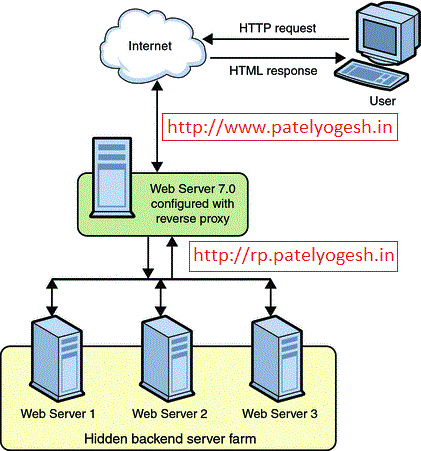
The Reverse Proxy will play a role being a proxy between the client and Sitecore web server. Reverse Proxy provides caching mechanism, which caches all media items. So, once any user has requested any media file from server, will be get cached on Reverse Proxy itself. So, from second time onwards, Reverse Proxy will not get media from Sitecore Web Server but will serve it from its own cache.

We can use URL Rewrite Module and Application Request Routing (ARR) to implement a Reverse Proxy Server.


Step - 1 : Install ARR and Url Rewrite on IIS?

  1. Setup IIS 7.0+ on your Server which will work as Proxy.
  2. Install URL Rewrite module. You can download it from here.
  3. Install ARR module. You can download it from here.

Step - 2 : Configure URL Rewrite module:

  1. Create a new Website in IIS or use Default website, and click on Website, then click on URL Rewrite option under IIS section
  2. Edit inbound rules as below:


    Above configuration shows that if requested host is www.patelyogesh.in, then this rule will be applied for its all requests (*).
  3. Configure Rewrite URL for above configurations as below. This will make sure that all requests coming from http://www.patelyogesh.in/ will be rewrited to http://rp.patelyogesh.in/*.


    When we apply above configurations, it will generate a web.config file under the website directory, which will look like below:

    <system.webServer>
        <rewrite>
          <rules>
             <rule name="Sitecore-Production" stopProcessing="true">
                 <match url="(.*)" />
                 <action type="Rewrite" url="http://rp.patelyogesh.in/{R:1}" />
                 <conditions>
                     <add input="{HTTP_HOST}" pattern="www.patelyogesh.in" />
                 </conditions>
             </rule>
          </rules>
        </rewrite>
      </system.webServer>
    

    We can also configure multiple domain's URL rewrites in the same way.

Step - 3 : Configure ARR (Application Request Routing) Cache

  1. Select the Server Node, now select Application Request Routing Cache option.

  2. Add Drive where the caching will be stored by ARR Module. The below image shows how we can configure ARR module and how it will look.
  3. Make sure the Identity user of the Application Pool should have read/write access of the drives configured here. So, ARR will store all cache files here only.

  4. Enable Proxy As per below image, click on Proxy Settings on the right side bar and enable Proxy.


Finally, Reverse Proxy setup finished, took just 15 minutes only!!

Now, Request to http://www.patelyogesh.in/. This will serve you content from http://rp.patelyogesh.in itself by traversing through Reverse Proxy. It's really easy and simple, isn't it?

How to confirm Reverse Proxy working fine?

We can provide our Custom Response Headers using Proxy Settings from ARR Cache option as shown in above image. So, if Reverse Proxy is working well, we will get those headers in response.

How to confirm ARR Caching working fine?

In File Explorer, open the Drive folder we configured in ARR Cache settings. We will get all files cached by ARR.

Cache for the URL: http://www.patelyogesh.in/~/media/Images/yogi.png (Rewrited URL: http://rp.patelyogesh.in/~/media/Images/yogi.png) will be stored at : <website root>\rp.patelyogesh.in\~\media\Images\yogi.png.full.

How to delete ARR cache programmatically?

In ARR Cache settings, you will find a button Delete Specific Cached Objects which can clear specific URL cache. It also supports wild cards for clearing cache.

We can create a web service on the ARR website, which will get a URL as input and will clear cache accordingly using below code. Now, on each media item publish from Sitecore, we will clear the ARR cache. We can decice How and when to make a call to the ARR web service to cache clear according to our architecture.

Source code to clear ARR cache programmatically:
[WebMethod]
public static ClearCache(string urlToCacheClear)
{
      var url = urlToCacheClear == "ALL" ? string.Empty : urlToCacheClear;

      var m = new ServerManager();
      var x = m.GetApplicationHostConfiguration().GetSection("system.webServer/diskCache");
      var method = x.Methods["FlushUrl"].CreateInstance();
      method.Input.SetAttributeValue("url", url);
      method.Execute();
}

Enjoy Reverse Proxy! Enjoy improved Sitecore Media Library performance!!

Good reads on Reverse Proxy:
- http://www.agarwalnishant.com/2013/04/improve-sitecore-media-library.html

- http://www.iis.net/learn/extensions/url-rewrite-module/reverse-proxy-with-url-rewrite-v2-and-application-request-routing

How Sitecore media cache Works?

Sitecore stores all media cache to file system, unlike all other caches, stored in RAM. Media items are stored in database, so media cache is required to reduce database calls and serve media files faster to end-user. Let's understand Sitecore media cache mechanism.

How Media Cache Created?

- When we upload a new media file to Sitecore, its media cache is created in Website\App_Data\MediaCache\<sitename>\<Hashcode of MediaId> folder. Sitecore assigns unique MediaId to each media item, which gets changed on each modification of media item.

- For each media item, Sitecore creates an INI file with name of MediaId in the respective folder, which stores different attributes of the media file inside it.

See below image as a reference:


In above case, this media's MediaId is "8c683332453741038b8876bf5915d188", so the ini file (8c683332453741038b8876bf5915d188.ini) is generated with name of MediaId. On right side, all information is stored in same file. dataFile shows physical media file name 7b4a5e3934914d57a390bedcab67380c.jpg.

Different attributes in INI file:
Attribute Description
Key height, width, thumbnail, background color, etc. image parameters passed by query string. You can get better idea by reading my earlier Blog Post on Sitecore Image Control Parameters
extension Extension of  media file.
headers Content Type, etc.
datafile Physical file name stored as media cache in same folder.

How Media Cache Deleted?

Sitecore provides a cleanup agent to clear older media files, which clears media files every specified interval of time. By default it clears all media cache files created 90 days ago. See below settings in web.config:
    
     <agent type="Sitecore.Tasks.CleanupAgent" method="Run" interval="06:00:00">
        <!-- Specifies files to be cleaned up.
             If rolling="true", [minCount] and [maxCount] will be ignored.
             [minAge] and [maxAge] must be specified as [days.]hh:mm:ss. The default value
             of [minAge] is 30 minutes.
             [strategy]: number of files within hour, day, week, month, year
             [recursive=true|false]: descend folders?
        -->
        <files hint="raw:AddCommand">
          <remove folder="/App_Data/MediaCache" pattern="*.*" maxAge="90.00:00:00" recursive="true" />
        </files>
      </agent> 

Media Cache Hidden Secrets

  • If a user has requested a media file with different querystring parameters, then Sitecore creates different media files runtime and stores all those files in same folder where original media file is stored. Also, all these combinations are stored in the same INI file itself.

    You can try accessing your media image with different parameters like below and check media cache:
    -http://sitecoreblog.patelyogesh.in/~/media/Images/myimage.jpg
    -http://sitecoreblog.patelyogesh.in/~/media/Images/myimage.jpg?h=100
    -http://sitecoreblog.patelyogesh.in/~/media/Images/myimage.jpg?w=200
  • When a media item is updated, Sitecore creates a new media cache with new INI file and a new media file even though the media file(blob) remains same or item already has same media cache. So, there will be duplicate media cache but Sitecore will refer to latest file only.
  • As we know Sitecore creates media cache in folder with name of Context Site. So, if one media file is accessed by two different Sites (SiteContext), then media cache will be generated for both sites, means in both sites' folders. For example, When media item is accessed by Content Editor, cache will be created for Shell site and when accessed by Website, then it will be created for Website.

How to read/create media cache programatically?

Yes, it's possible to create or read media cache by Sitecore API:
    
    ///////////////////////////////////
    // Read Media Cache
    ///////////////////////////////////

    MediaRequest request; // media parameters like height, width, etc.
    Sitecore.Resources.Media.Media media // item for which you want to read media cache.

    // set request.Options
    // set media

    // This is the media cache stored in MediaStream
    MediaStream mStream = MediaManager.Cache.GetStream(media, request.Options);


    ///////////////////////////////////
    // Write Media Stream to Media Cache
    ///////////////////////////////////

    // Manipulate your media file and set it into MediaStream

    // store the media stream to media cache.
    MediaManager.Cache.AddStream(media, request.Options, mStream, out outStream);

We can know more about Media Cache understanding below classes using Reflector:
- Sitecore.Resources.Media.MediaCache
- Sitecore.Resources.Media.MediaCacheRecord