Upload Sitecore media items in selected languages

One day, one idea came in my mind to create media items in specific languages only, which is very useful thought. By default, Sitecore media item gets created in many languages, where we need actually one or two out of them. Want to know why? Then read why sitecore media item gets created in multiple languages.

NOTE: This issues was recreated in Sitecore 7.2 and older versions. Sitecore 8 and later creates media items only in context language.

Specific languages for Unversioned Media Item

How it's benefitial?
In Unversioned media item, item gets created in all languages exist under /sitecore/system/languages/. Creating its version in selected languages is benefitial:
  1. Less insert queries to DB tables, less records fetched while fetching media item details.
  2. DataCache and ItemCache will be created in selected languages only instead of all languages.
  3. Reduced Database size, where millions of media are stored.
  4. So, overall performance improvement while uploading media item and while using/fetching media item.
How to achieve it?
  1. Create your custom class inherited from the Sitecore.Resources.Media.MediaCreator one, say SitecoreTactics.Resources.Media.MediaCreator. In this class you should override CreateItem method to retrieve there the set of the languages from the web.config setting. This set should be used as the languageArray in the foreach cycle. Thus the unversioned mediaitem with certain language versions will be created.

    See how it looks:
    namespace SitecoreTactics.Resources.Media
    {
     using System.Reflection;
     public class MediaCreator : Sitecore.Resources.Media.MediaCreator
     {
      protected override Item CreateItem(string itemPath, string filePath, MediaCreatorOptions options)
      {
       // Override the CreateItem function method and write custom code to create selected language versions
      }
      }
    }
    
    
  2. Create your custom class inherited from Sitecore.Resources.Media.MediaProvider one. In the constructor of this class you should assign an instance of our custom MediaCreator class (from Step#1) to the MediaProvider "creator" private field using the Reflection. So, the MediaProvider will use our own code of MediaCreator.

    How the code looks:
     namespace SitecoreTactics.Resources.Media
     {
      using System.Reflection;
      public class MediaProvider : Sitecore.Resources.Media.MediaProvider
      {
       public MediaProvider() : base()
       {
        typeof(Sitecore.Resources.Media.MediaProvider).GetField("creator", BindingFlags.NonPublic | BindingFlags.Instance).SetValue(this, new SitecoreTactics.Resources.Media.MediaCreator());
       }
      }
     }
    
    
  3. Change in config, register our custom mediaprovider class as below:
    <mediaLibrary>
        ...
        <mediaProvider type="SitecoreTactics.Resources.Media.CustomMediaProvider,SitecoreTactics.Resources" />
        ...
    </mediaLibrary>


Wow, it worked well!

Specific languages for Versioned Media Item

Versioned Media Item does not need an automated way to upload media in selected languages. The reason is, this kind of media does not share Media File. So, it is used only when we need to upload different files for different languages of same media item. If still someone need to achieve it, here is the way:
  1. Add a settings in the web.config file containing set of the pipe separated needed languages. For example:
    <setting name="SetOfLanguages" value="en|ru-RU|en-GB" />
    
  2. Add an extra checkbox "Versionable For Certain Languages" on the Media Folder Upload Form using this file: \Website\sitecore\shell\Applications\Media\MediaFolder\MediaFolder.xml
  3. Create a custom class inherited from Sitecore.Pipelines.Upload.UploadArgs and add here an extra "SpecialVersioned" property. This property will indicate to Sitecore.Pipelines.Upload.Save processor to execute the custom actions.
  4. Create a custom class based on Sitecore.Shell.Applications.FlashUpload.Advanced.UploadTarget one and define it in \Website\sitecore\shell\Applications\FlashUpload\Advanced\UploadTarget.aspx file instead of the default one.
  5. In this class you should assign a value to your custom UploadArgs.SpecialVersioned property similar to the UploadArgs.Versioned one.
  6. Create your custom class based on the Sitecore.Pipelines.Upload.Save one and register it in the web.config <uiUpload> pipeline instead of the default one.
  7. An example of its rewritten Process method is here: Expand Code
It's working great, isn't it?
And yes, many thanks to Yuriy Zakharov from Sitecore Support to provide such a nice solution!!

Sitecore Custom HTTP Handlers

We recently had a requirement that we need thumbnail for PDFs stored in Sitecore, so whenever we need to find PDFs or other media files, we can find out them by its thumbnail. In starting we thought to create a thumbnail for each media file and then store it to another location in Sitecore tree itself while uploading media. It was a good idea, but the problem in this approach would come when a user updates the media? We need to create thumbnail again... Same thing when user deletes/moves/publishes, etc. it needed to generate thumbnail all the time.

Finally we came to a perfect solution of using Custom HTTP Handler, using which we can fulfill this requirement easily.

Overview of Sitecore Custom Handlers?

Search for in your web.config. These are the custom handlers called by Sitecore to serve requests of media, xaml, icon, feed, etc. See below block in web.config:
    
      <handler handler="sitecore_media.ashx" trigger="~/media/" />
      <handler handler="sitecore_api.ashx" trigger="~/api/" />
      <handler handler="sitecore_xaml.ashx" trigger="~/xaml/" />
      <handler handler="sitecore_icon.ashx" trigger="~/icon/" />
      <handler handler="sitecore_feed.ashx" trigger="~/feed/" />
    
Sitecore.Pipelines.HttpRequest.CustomHandlers processor from httpBeginRequest dispatches requests to specialized handlers that are required. These handlers are defined in web.config under configuration/sitecore/customHandlers.

If the current request ends with the a handler’s file (e.g., sitecore_media.ashx), then Sitecore aborts the current pipeline, since this request is specifically targeting a handler directly, which are defined in system.webServer/handlers section as below, which shows that the media request will be served through Sitecore.Resources.Media.MediaRequestHandler. See below block of web.config:
   <handlers>
      <add name="Sitecore.MediaRequestHandler" path="sitecore_media.ashx"  type="Sitecore.Resources.Media.MediaRequestHandler, Sitecore.Kernel" verb="*" />
   </handlers>

Create own Sitecore Custom Handlers to generate thumbnails of media items

Now, we created a new custom handler for creating thumbnail and registered in handlers as below:
    
<configuration xmlns:patch="http://www.sitecore.net/xmlconfig/">
  <sitecore>

    <!-- Define Custom Handler -->
    <customHandlers>
      <handler trigger="~/mediathumb/" handler="sitecore_media_thumb.ashx"  />
    </customHandlers>

    <!-- Define Media Prefix -->
    <mediaLibrary>
      <mediaPrefixes>
        <prefix value="~/mediathumb" />
      </mediaPrefixes>
    </mediaLibrary>
  </sitecore>


  <!-- Define Web Handler -->
  <system.webServer>
 <handlers>
     <add verb="*" path="sitecore_media_thumb.ashx" type="SitecoreTactics.ThumbnailManager.PDFThumbnailRequestHandler, SitecoreTactics.ThumbnailManager" name="SitecoreTactics.PDFThumbnailRequestHandler"/>
 </handlers>
  </system.webServer>
</configuration>    
This class will create a thumbnail of the request PDF on-the-fly using GhostScript. We will save this thumbnail as Media Cache, so on the next request, the thumbnail will not be created, but will be served from Media Cache itself, same as Sitecore serves media items.

In this case suppose, the PDF we uploaded has URL:
http://mydomain.com/~/media/files/Docs/mypdf.pdf.
Now, we can get its thumbnail as JPG file using URL, which will be served by our new handler because it contains /~/mediathumb trigger.
http://mydomain.com/~/mediathumb/files/Docs/mypdf.jpg.

Finally, we do not need to take care if media item is moved, deleted, published or updated. I will attach its source code very soon.... :)

What else we can do using Custom Handlers?

- In above approach, we can also generate thumbnail of different size, dimensions passed through querystring, same way Sitecore provides it for images. Read how we can Resize Sitecore Media Images on the fly.
- Even Custom Handlers can be useful to serve different kind of resources like creating sitemap (/~/sitemap/), RSS for page or its children (/~/rss/), stylesheets (/~/css/), javascripts (/~/js/), etc.

Related Posts:
- PDF Thumbnail Handler
- Show PDF Thumbnail Icons in Content Editor

Sitecore media url - remove ashx extension

Have you ever marked all your media items are rendered in our page output as .ashx extension? By default, Sitecore renders all media files or images (.jpg, .gif, .pdf, .xls, etc.) as .ashx extension.

The same thing you will find while getting mediaurl for your media items.

You can render media with its own extension using Media.RequestExtension setting in web.config.
It defines the extension to use in media request URLs. It's default its value is ashx, so all media url are .ashx.
So, media's URL will be: http://mydomain.com/~/media/Images/Banner/image.ashx
<setting name="Media.RequestExtension" value="" />

Setting its value to blank will render media url with relevant extension. Now, all your media items will be rendered in page output with its valid extension like, http://mydomain.com/~/media/Images/Banner/image.jpg
Still, your existing URL http://mydomain.com/~/media/Images/Banner/image.ashx will also work.

Image url can have different querystring parameters. Read more for Image Control and QueryString parameters.

How to speed up Sitecore application startup?

Is your Sitecore application having slow start-up time and want to improve it? The main reason behind slowness is bigger Prefetch Cache. Application's startup time is directly proportional to size of Prefetch Cache set.

If you set Bigger Prefetch, it gives slow startup, but it can give you better performance while opening Content Editor or Page Editor because your items' data are already fetched from Database to Prefetch Cache.

In reverse, if you get Smaller Prefetch, it gives fast startup, but it can give you less performance while opening Content Editor or Page Editor because your items' might not be fetched to Prefetch from database. Thus, setting bigger or smaller amount of Prefetch, both have their own pros and cons.

Prefetch Cache Best Practices

If prefetch is customized according to our use of pages of site, it will give you the best performance. For that you have to findout three things:
- Which are the pages used the most in your site like Homepage.
- Which are the pages, whose children are accessed frequently.
- Which kind of pages(templates) are used the most.
Then, try to Prefetch all those items which are used in these pages.

For example,
- Homepage is the most frequently visited page, then you should prefetch Home item and its immediate children.
- Similarly suppose News pages are visited frequently, then you should prefetch News Template and their children too.

How to configure Prefetch Cache

Open the prefetch cache settings under the App_Config/Prefetch/ folder. For example /App_Config/Prefetch/Web.Config:

  
  300MB

  
  100 


  {XXXXXXXX-XXXX-XXXX-XXXX-XXXXXXXXXXXX }

  
  {XXXXXXXX-XXXX-XXXX-XXXX-XXXXXXXXXXXX}

See how these configurations will work:
  • <cachesize>300MB</cachesize>
    describes Sitecore will do prefetch upto 300MB.
  • <template desc="mytemplate">{XXXXXXXX-XXXX-XXXX-XXXX-XXXXXXXXXXXX}</template>
    Defines that items of the specified template will be prefetched.
  • <item desc="myitem">{XXXXXXXX-XXXX-XXXX-XXXX-XXXXXXXXXXXX }</item>
    Defines that the specified item will be prefetched.
  • <children desc="childitems">{XXXXXXXX-XXXX-XXXX-XXXX-XXXXXXXXXXXX}</children>
    Defines that specified children of the given item will be prefetched.
  • <childlimit>100</childlimit>
    Defines a limit to the number of children to include in the prefetch cache.

The Sitecore Prefetch Cache is a bit of a gray area. But, the above settings work great and surely help you to improve application startup.

If you are new to Sitecore cache, refer How Sitecore Caching Work and Performance Improvement Techniques.

Enjoy quick start up!!

Why my Sitecore Media Item created in multiple languages?

Have you ever faced that you upload a single media file to Sitecore and it gets created in multiple languages? This is not strange but expected behavior in Sitecore. Let's see how.

Check Media.UploadAsVersionableByDefault setting in your web.config. If it is false, then uploaded media item will be created in all those languages which exist under /sitecore/system/languages. This media item will use unversioned template /sitecore/templates/System/Media/Unversioned/File template, so the Blob(Media) and its common details would be shared across all language versions. See below image.


This option is really helpful when you want to use common media files across multiple languages content pages as the media is shaerd across all languages.


Where, if you have this setting as true, then each media item will be generated in default language only. This media item will use versioned template /sitecore/templates/System/Media/Versioned/File template, so the Blob(Media) and its all details would be distinct across languages. See below image.


This option is really helpful when you want to use different media files for different language content pages.

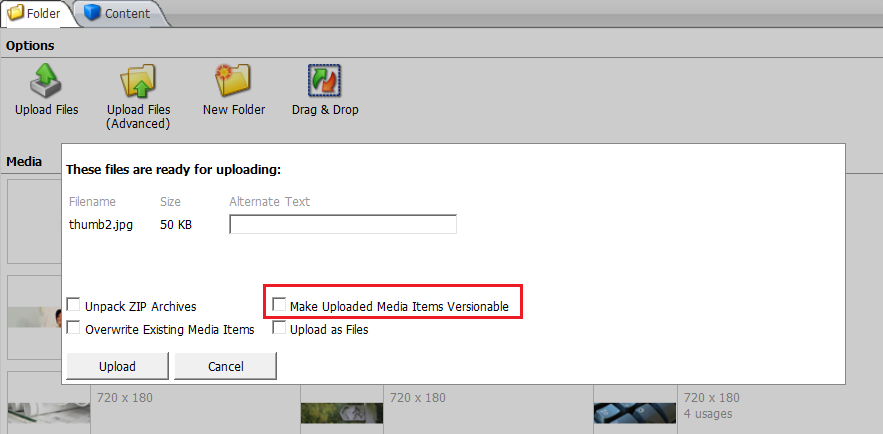
We can choose whether we need versioned or unversioned media. While doing Upload File (Advanced), Sitecore asks to select Make Uploaded Media Items Versionable checkbox. If the checkbox is selected, it will create versioned media, otherwise will create unversioned media items. See below image:


You want to upload media items in Sitecore with your selected languages only? Refer my new post: Upload sitecore media items in selected languages.

Sitecore partial cache clear programmatically

Sitecore is already smart enough to do cache clearing automatically. But in many cases, we might need to do manually clear different cache for particular items. We can do partial cache clear as below for any item we want whether it is in Prefetch Cache, Data Cache, Item Cache, StandardValue Cache, HTML Cache, etc.

Let's see how we can clear different cache.

Clear Item level Cache - Prefetch Cache, Data Cache, Item Cache, Standard Value Cache

Suppose, we want to clear Prefetch cache, Data Cache and Item Cache for /sitecore/content/Homepage/
    string itemPath = "/sitecore/content/Homepage/";
    Item home = Sitecore.Context.Database.GetItem(itemPath);

    public void ClearItemLevelCache(home)
    {
        // Clear item's Item Cache
        Sitecore.Context.Database.Caches.ItemCache.RemoveItem(home.ID);

        // Clear item's Data Cache
        Sitecore.Context.Database.Caches.DataCache.RemoveItemInformation(home.ID);

        // Clear item's Standard Value Cache
        Sitecore.Context.Database.Caches.StandardValuesCache.RemoveKeysContaining(home.ID.ToString());

        // Clear item's Prefetch Cache
        CacheManager.GetSqlPrefetchCache(home.Database.Name).Remove(home);
    }

    public static Cache GetSqlPrefetchCache(string database)
    {
      return Caching.CacheManager.FindCacheByName("SqlDataProvider - Prefetch data(" + database + ")");
    }

Clear Sitewise Cache

Suppose, we want to clear cache for Context site.
    SiteContext site = Context.Site;

    public void ClearSiteCache(SiteContext site)
    {
        SiteCaches siteCache = site.SiteCaches;

        // Clear HTML Cache
        siteCache.HtmlCache.Clear();

        // Clear Registry Cache
        siteCache.RegistryCache.Clear();

        // Clear ViewState Cache
        siteCache.ViewStateCache.Clear();

        // Clear FilteredItemsCache
        siteCache.FilteredItemsCache.Clear();

        // Clear XSL Cache
        siteCache.XSLCache.Clear();
    }

Clear other Sitecore level Cache

Similarly we can also clear PathCache, AccessResultCache, etc. as below:
    Caching.CacheManager.GetPathCache(Sitecore.Context.Database).Clear();
    Caching.CacheManager.GetAccessResultCache().RemovePrefix(database.Name);
Sitecore.Caching.CacheManager provides all functions for getting and clearing all caches.

Update Sitecore Item programmatically

There are two ways where you can put an item in editing mode and update its fields.

1. Sitecore.Data.Items.ItemEditing

2. Sitecore.Data.Items.EditContext (Deprecated)

If you are saving any item field without using above statements, it might give you exception that Item was not in Edit Mode. Let's see how we can update item

Sitecore.Data.Items.ItemEditing

See below code which allows to save any item.
    Sitecore.Data.Database masterDB = Sitecore.Configuration.Factory.GetDatabase("master");
    Sitecore.Data.Items.Item home = masterDB.GetItem("/sitecore/content/Home");

    //Begin Editing Sitecore Item
    home.Editing.BeginEdit();
    try
    {
        home["Title"] = "Title from Code Behind";

        // This will commit the field value
        home.Editing.EndEdit();
    }
    catch (Exception)
    {
        //Revert the Changes
        home.Editing.CancelEdit();
    }
This function has three variants, means it allows to item save in two different options.
item.Editing.EndEdit()
This save will actually do 3 steps:
  1. Save item
  2. Update item statistics, means updates Modified Date, Modified By User, etc. statistics information of item
  3. It will execute events related to Item Save.
item.Editing.EndEdit(updateStatistics, silent)
This save will allow us to choose which operations to do. This is going to save item same as above. But it will do update statistics or execute events or not depending on the parameters passed.

If we pass updateStatistics as false, it will not update Modified Date and Modified By fields. This is really useful when we need to update items in background. This will update item in read-only mode. If we pass true, then it will update this information.

If we pass silent as true, it will temporarily disable events. So, event this item's save will not be logged in EventQueue.

Below is the code to understand what EndEdit does:
public bool EndEdit()
{
    return this.EndEdit(true, false);
}

public bool EndEdit(bool updateStatistics, bool silent)
{
    bool flag2;
    bool readOnlyStatistics = this.m_item.RuntimeSettings.ReadOnlyStatistics;
    try
    {
        if (!updateStatistics)
        {
            this.m_item.RuntimeSettings.ReadOnlyStatistics = true;
        }
        if (!silent)
        {
            flag2 = ItemManager.SaveItem(this.m_item);
        }
        else
        {
            using (new EventDisabler())
            {
                flag2 = ItemManager.SaveItem(this.m_item);
            }
        }
    }
    finally
    {
        this.m_item.RuntimeSettings.ReadOnlyStatistics = readOnlyStatistics;
    }
    return flag2;
}

Sitecore.Data.Items.EditContext

Note: Sitecore EditContext is deprecated,  and Sitecore team recommends using ItemEditing (1st approach).

The above thing is also possible using Sitecore.Data.Items.EditContext in below manner:

Below is example of Sitecore item save using Default parameters. Here, updateStatistis is by default true and silent is false.
Sitecore.Data.Database masterDB = Sitecore.Configuration.Factory.GetDatabase("master");
Sitecore.Data.Items.Item home = masterDB.GetItem("/sitecore/content/Home");

//Begin Editing Sitecore Item
using (new EditContext(home))
{
    home["Title"] = "Title from Code Behind";
}
We can also pass parameters of updateStatistics and silent in EditContext like below example.
bool updateStatistics = false;
bool silent = true;
using (new EditContext(home,updateStatistics, silent))
{
    home["Title"] = "Title from Code Behind";
}
We can also pass parameters of checking security or not while updating the item like below.
using (new EditContext(home, SecurityCheck.Disable))
{
    home["Title"] = "Title from Code Behind";
}

Sitecore performance improvement techniques

Most of us might have faced issues with Sitecore performance and slow sitecore instance. Then first step should be referring Sitecore's suggestions: Optimizing Sitecore Performance. If you already referred, here are few more tricks to optimize sitecore performance.

Prefetch, Data and Item Cache tuning

Prefetch, Data and item cache sizes should be configured as needed. You may start with a smaller number of cache size and tune them as you find use of items increasing or depending on performance we get. Sitecore cache tool (/sitecore/admin/cache.aspx) can help us to check Sitecore cache utilization.

Sitecore says: Increase and tune the size of the data, items, and prefetch caches. Bigger caches = better performance. We can change size of cache of whole Sitecore instance using below settings in web.config.

      300MB
      300MB
      5MB
      5MB

Tune the prefetch cache settings under the App_Config/Prefetch/ folder. Sample /App_Config/Prefetch/Web.Config:

  300MB


  {XXXXXXXX-XXXX-XXXX-XXXX-XXXXXXXXXXXX }

  
  {XXXXXXXX-XXXX-XXXX-XXXX-XXXXXXXXXXXX}


Below are the cache tuning findings from our own experiences:
  • The more Prefetch Cache, the more time taking in Sitecore Startup, but it might help loading Content Editor and Page Editor faster. Less Prefetch Cache, makes faster startup, but might get slower CE or PE.
  • If you are using separate Publish Instance, keep Prefetch cache as minimum as possible on PI.
  • Caching can be a on-going process until you are not set with your optimized cache settings.
  • Cache Clearing is a very critical process, can slowdown the application. Whenever heavy publishing occurs, template are changed/published, heavy item creation/deletion/updation going on Sitecore, cache clearing occurs, preventing/optimizing these cases can help to prevent cache clearing.
  • Cache size occupied in memory would vary from the cache sizes set in config because it is not easy to estimate .NET object size accurately. So there are chances that dataCache, AccessResultCache, etc. can grow more than its specified value.

If you are newer to Sitecore caching? Read How Sitecore Caching Works. Read more about Sitecore Prefetch Fetch configuration & quick startup.

AccessResultCache Configuration

If you are facing slowness on production/live environments, then setting for AccessResultCache configuration will surely help to gain performance. One of my colleague Muktesh Mehta did a great finding that AccessResultCache clearing happens a lot on live servers, where actually we do not need to check access rights for any user. After confirmation from Sitecore guys, we simply set the value of AccessResultCache to 0 on live servers and finally we defeated the slowness :)

Apply Sublayout Caching

Sitecore allows us to use .NET sublayouts and XSL renderings in Sitecore’s caches to improve performance. We can apply HTML cache using sublayout caching, this improves performance drastically.

When sublayout caching is on, its HTML cache (HTML output) will be cached, all other subsequent requests will be served from the HTML cache itself. So, no more database interactions for the sublayout. :) Just to make a note, HTML cache will be cleared on live server when any publish is done.

See for more details: http://blog.navigationarts.com/caching-via-sitecores-html-cache/

Disable unwanted background Sitecore jobs

Removing unwanted things is as important as doing optimization. Sitecore instance has many jobs/tasks running in background. i.e., urlagent, cleanup agent, etc. We can disable them if they are not useful or increase their time interval to execute. The agents can be found from web.config under <agents> section and the tasks can be found from Sitecore itself on path:/Sitecore/System/Tasks/Commands.

Enable CSS, JS Caching, Compression

Enabling Browser caching and Compression to CSS and JS will give a big performance improvement on page browsing and requests reduction on server.

Prevent use of GetDescendants

GetDescendants is a very costly method to list out items. It recursively fetches all items upto the last level under the given item. Even if we need to get all items up to 2nd level, this function will traverse through n level. It does not only list the items but also fetches Item details (by filling DataCache and ItemCache). So, Sitecore Item architecture should be setup in such a way that item details can be fetched from first or second level from where we are fetching items.

Executing Database queries can be a good alternative in few cases like creating Sitemap, getting few fields' details for making tools or generate stats, etc. See more on Sitecore Database Queries to get item details

Prevent frequent publishing

On each publish, Sitecore is is clearing Cache of published or related items. i.e., if an item is published from master to web, Sitecore needs to update this item on web database (live servers). So, Data Cache, Item Cache are cleared for the related items. Also, Html Cache is cleared for the whole site on each publish. So, it is always better to prevent frequent publishing or doing publishing after keeping few minutes interval.

IIS/.NET level changes

  1. Upgrade to IIS 7+
    IIS 7+ gives a drastic improvement in performance compared to older versions.
  2. Upgrade to .NET 4+
    .NET Framework 4+ gives a drastic improvement in performance compared to older versions.
  3. Enable HTTP Keep-alive and content expiration in IIS
  4. Disable IIS ASP debugging in production environments
  5. Read Optimizing IIS performance and ASP.NET Thread Usage on IIS 7.5, IIS 7.0, and IIS 6.0 to know more above these settings.

Sitecore - Get items details using Database Query

Sitecore provides Item.GetDescendants() function to fetch all descendants of any item. Sitecore APIs always fetch items with their field values (whether we required them or not) either from database or from cache, so chances of more lengthy database query execution or heavy cache clearing or creation. That's the reason why Sitecore APIs like Item.GetDescendants() or database.GetItem() are slower.

It is recommended to use Sitecore APIs for development purposes, but still Database Queries can serve better than APIs to get what exactly we need (item's children/descendants and their field values). Database Query should be used only when we need to fetch lots of items in a single call or we need to read few field values for these items.

In such cases, we can make direct queries on database to get performance improvement and get speedy results.

Different SQL Queries

1. Select all children
2. Select all descendants
3. Get path of item
4. Get any field's value
5. Get item's full details with field types

Below queries are performed on Sitecore Training Sample Site.

Select all children

Below query gets children of item '/sitecore/content/Home'. It's GUID is {4E7AB8B1-6A39-4C8C-BF5B-816F8105BFFD}
SELECT ID, [Name], Created from  [dbo].[Items]
 WHERE [ParentID] = '{4E7AB8B1-6A39-4C8C-BF5B-816F8105BFFD}'


Select all descendants

Below query gets descendatns of item '/sitecore/content/Home'. It's GUID is {4E7AB8B1-6A39-4C8C-BF5B-816F8105BFFD}
WITH [Content_Items] AS 
 (
  SELECT [ID], [Name], Created
   FROM [dbo].[Items]
   WHERE ID='{4E7AB8B1-6A39-4C8C-BF5B-816F8105BFFD}'
  UNION ALL
  SELECT  i.[ID], i.[Name], i.Created
   FROM [dbo].[Items] i
   INNER JOIN [Content_Items] ci ON ci.ID = i.[ParentID]
 )
 SELECT ID, Created
 FROM [Content_Items]

 GO

Get path of item

We can also get full path of item. Suppose, we need to get full path of Home or we need to create SiteMap frequently, this query will be a great option to generate FullPath/URL of each item.

Below is the function we can create to get Full/Relative path of any item. Here, SC_GetPath has two parameters. First parameter is ID which is the item's ID. Second parameter is to get relative path, means from this ID, the path will be generated.
CREATE FUNCTION [dbo].[SC_GetPath] 
(
 @ItemID [uniqueidentifier],
 @RootPath [uniqueidentifier]
)
RETURNS varchar(MAX)
AS
BEGIN
 DECLARE @Result varchar(MAX);

 with scpath(Name, ParentID, id)
 as
 (
  select Cast(a.Name as varchar(MAX)), a.ParentID, a.ID
  from [Items] a
  where a.ID = @ItemID
  union all
  select Cast(b.Name + '/' + c.Name as varchar(MAX)), b.ParentID, b.ID
  from [Items] b
    inner join scpath c on b.ID = c.ParentID
  where c.ParentID is not null
 )

 select top 1 @Result = '/' + d.Name  from scpath d
  where d.ID = @RootPath /*'11111111-1111-1111-1111-111111111111'*/

 RETURN @Result

END

Get full item path
Suppose we need to get full path of item Jobs.
ID of Jobs item: {6C897D6C-CE0C-422D-8955-7113A0E1B8EF}
ID of sitecore item: {11111111-1111-1111-1111-111111111111}

Sitecore, we can make query as below to get path /sitecore/content/Home/Jobs: Here,
SELECT [Name], [dbo].[SC_GetPath] (ID,'{11111111-1111-1111-1111-111111111111}') AS ItemPath 
 FROM [dbo].[Items]
 WHERE [ID] = '{6C897D6C-CE0C-422D-8955-7113A0E1B8EF}'


Get relative item path
Now, to get relative path of item Jobs starting from /Home.
ID of Jobs item: {6C897D6C-CE0C-422D-8955-7113A0E1B8EF}
ID of Home item: {4E7AB8B1-6A39-4C8C-BF5B-816F8105BFFD}

Sitecore, we can make query as below to get path /Home/Jobs: Here,
SELECT [Name], [dbo].[SC_GetPath] (ID,'{4E7AB8B1-6A39-4C8C-BF5B-816F8105BFFD}') AS ItemPath 
 FROM [dbo].[Items]
 WHERE [ID] = '{6C897D6C-CE0C-422D-8955-7113A0E1B8EF}'

Get any field's value

Getting item's field value depends on its type of field means it is Versioned, Unversioned or SharedField. Each type of field and its values are stored in different table. So, before getting any field's value, it is good to know its field type and based on it we can get execute query.

See how below function helps to return a shared field's value of an item, similarly we can write function for Versioned and Unversioned fields too:
CREATE FUNCTION [dbo].[SC_GetSharedFieldValue] 
(
 @ItemID [uniqueidentifier],
 @FieldID  [uniqueidentifier]
)
RETURNS nvarchar(max)
AS
BEGIN
 DECLARE @Result  nvarchar(max)
 SELECT @Result = value 
  FROM [dbo].[sharedFields]
  where ItemId=@ItemID
  and fieldid=@FieldID
 RETURN @Result
END
Here, Size field's ID is:{6954B7C7-2487-423F-8600-436CB3B6DC0E}. So, for getting media item's size, we can use above function as below. Here, quert list down all child media media of /sitecore/media library/Images/Banners and its ID is: {1D02B586-0B55-4C2F-AED4-A3172B81B0DA}
SELECT ID, [Name], [dbo].[SC_GetSharedFieldValue] (ID, '{6954B7C7-2487-423F-8600-436CB3B6DC0E}') AS FileSize
 FROM [dbo].[Items]
 WHERE [ParentID] = '{1D02B586-0B55-4C2F-AED4-A3172B81B0DA}'

Get item's full details

Below query will help to get all fields' values and their field types like below:
  • All Shared field values
  • All Versioned field values
  • All Unversioned field values
  • All Field Types (Like Single-Line Text, Checkbox, Multilist, etc.)
For getting item's all fields values, we have to make a UNION query on all three types of tables of three different field types. See below query to get item's all details:

DECLARE @ItemId uniqueidentifier 
SET @ItemId = '{0DE95AE4-41AB-4D01-9EB0-67441B7C2450}'
DECLARE @FieldTypeId uniqueidentifier 
SET @FieldTypeId = '{AB162CC0-DC80-4ABF-8871-998EE5D7BA32}' -- Item Id of Field Type in each item

SELECT I.Name, [dbo].[SC_GetSharedFieldValue](I.Id, @FieldTypeId) AS [Field Type],
  S.Value, '' AS [Language], '' AS [Version] FROM SharedFields S, Items I 
 WHERE S.itemid=@ItemId
 AND S.FieldID = I.ID
UNION
SELECT I.Name, [dbo].[SC_GetSharedFieldValue](I.Id, @FieldTypeId) AS [Field Type],
  U.Value, U.Language, '' AS Version FROM UnversionedFields U, Items I 
 WHERE U.itemid=@ItemId
 AND U.FieldID = I.ID
UNION
SELECT I.Name, [dbo].[SC_GetSharedFieldValue](I.Id, @FieldTypeId) AS [Field Type], 
  V.Value, V.Language, V.Version FROM VersionedFields V, Items I 
 WHERE V.itemid=@ItemId
 AND V.FieldID = I.ID
This will return all fields' values as below.
- Shared Fields do not contain Language and Version fields, so we have returned blank.
- Unversioned Fields do not contain Version, so have returned blank as Version.


SQL Database queries faster than Sitecore APIs and better than Sitecore fast query, isn't it?

Sitecore Item alias - Alternate URL

An Alias is an alternate path for an item when browsing the web site. In other terms we can have URL alias in Sitecore.

Suppose, you have an item's URL as:
http://mysite.com/news/2013/cricket/

Now, you want the same page to be opened using some alternate URLs like:
http://mysite.com/cricket-news/
OR
http://mysite.com/news-cricket/

This is quite possible using AliasResolver in Sitecore.

How to configure

We will create two different aliases cricket-news and news-cricket under /sitecore/system/aliases/. Both items will have same configuration, means both will point to content item /sitecore/content/Home/News/2013/Cricket/ So, AliasResolver read these settings and work accordingly.

See below image how alias can be set for this item.

How can we know URL of alternate URL or Alias?

To see if an alias exists, use the database.Aliases.Exists() method. This will check if both the alias exists and the target item exists sd below:
    // Code from Sitecore.Pipelines.HttpRequest.AliasResolver class
    Database database = Context.Database;
    if (database == null)
    {
        Tracer.Warning("There is no context database in AliasResover.");
    }
    else
    {
        if (database.Aliases.Exists(args.LocalPath) && !this.ProcessItem(args))
        {
            this.ProcessExternalUrl(args);
        }
        Profiler.EndOperation();
    }

    private void ProcessExternalUrl(HttpRequestArgs args)
    {
        string targetUrl = Context.Database.Aliases.GetTargetUrl(args.LocalPath);
        if (targetUrl.Length > 0)
        {
            this.ProcessExternalUrl(targetUrl);
        }
    }

    private void ProcessExternalUrl(string path)
    {
        if (Context.Page.FilePath.Length <= 0)
        {
            Context.Page.FilePath = path;
        }
    }


What to do in multisite environment?

In multisite environment, we can still use this functionality. We can customize the AliasResolver processor in HttpRequestBegin pipeline, where the alias items will be stored in Site specific folder, so, the Custom AliasResolver will search aliases in site folder only. We can create a alias folder structure site-wise, something like,
/Sitecore/System/Aliases/Site-A/Alias1
/Sitecore/System/Aliases/Site-A/Alias2
/Sitecore/System/Aliases/Site-B/Alias1
/Sitecore/System/Aliases/Site-B/Alias2

See below snap:

This structure might change depending on what folder structure you follow. See how code will go for Custom AliasResolver:
namespace SitecoreTactics.Pipelines.HttpRequestBegin
{
class CustomAliasResolver : AliasResolver
{
    public new void Process(HttpRequestArgs args)
    {
        Assert.ArgumentNotNull(args, "args");

        if (!Settings.AliasesActive)
        {
            Tracer.Warning("Aliases are not active.");
        } 
        else 
        {
            Sitecore.Data.Database database = Sitecore.Context.Database;
            if (database == null)
            {
                Tracer.Warning("There is no context database in AliasResover.");
            }

            Item aliasItem = getAliasItem(args);
            if (aliasItem != null)
            {
                LinkField linkField = aliasItem.Fields["Linked item"];
                if (linkField != null)
                {
                    Item AliasLinkedTo = Sitecore.Context.Database.GetItem(linkField.TargetID);

                    if (AliasLinkedTo != null)
                    {
                        Sitecore.Context.Item = AliasLinkedTo;
                    }
                }
                else
                {
                    base.Process(args);
                }
            }
        }            
    }

    /// 
    /// Gets the alias item.
    /// 
    /// The args.
    /// 
    private Item getAliasItem(HttpRequestArgs args) 
    {
        string siteName = Sitecore.Context.Site.RootPath.ToLower();

        if (args.LocalPath.Length > 1)
        {
            Item aliasItem = Sitecore.Context.Database.GetItem("/sitecore/system/Aliases/" + siteName + "/" + args.LocalPath);
            if (aliasItem != null)
            {
                return aliasItem;
            }                
        }

        return null;
    }
}
}

Read more about Sitecore alias:

- Sitecore language based Alias
- Sitecore Alias for multisite solution - Marketplace Module

Sitecore friendly URL | Remove or change URL extension

Do you want to achieve friendly URL means remove .aspx extension or want to change .aspx extension to .asp, .php, etc. then this blog is for you!

Suppose we have original URL like this:
http://mysite.com/aboutme.aspx

We can achieve Friendly URL / Remove URL extension:
http://mysite.com/aboutme/

We can change URL Extension too:
http://mysite.com/aboutme.php
OR
http://mysite.com/aboutme.asp

We can achieve any of below URLs with few changes in Sitecore. We are going to achieve
  1. How the above URL requests will be served
  2. How all URLs generated by that request will follow same URL format.

 Let's see how.

How to achieve friendly url?

Sitecore architecture has inbuilt facility to achieve friendly URLs.
In Web.config, find below line and set addaspxextension="false", which simply removes aspx extension from generated URLs:
<add addaspxextension="false" alwaysincludeserverurl="false" encodenames="true" languageembedding="never" languagelocation="filePath" name="sitecore" shortenurls="true" type="Sitecore.Links.LinkProvider, Sitecore.Kernel" usedisplayname="false" />

Doing these change, Sitecore will respond to any friendly URL, also will generate all friendly URLs only. See below snap how we achieved.

How to change URL extension from .aspx to .asp, .html, etc.?

First thing is, Sitecore will support all the extensions which are Allowed from IIS. Second thing is, Sitecore itself has Allowed and Blocked extension list. So, all allowed extensions are by default accepted by Sitecore.

Any customized extension should work

You might be knowing all Sitecore processors in HttpRequestBegin pipeline. Using ItemResolver, Sitecore determines context item by the actual path from the URL without considering the extension. Means, whether extension is .aspx, .asp, .php, or even your name say .yogesh, not an issue, Sitecore will allow it and render page. :) Just thing to note, that extension should be allowed from Sitecore configurations.

See how to configure in web.config:
<preprocessRequest help="Processors should derive from Sitecore.Pipelines.PreprocessRequest.PreprocessRequestProcessor">
   <!-- Few processors might be there -->
   <processor type="Sitecore.Pipelines.PreprocessRequest.FilterUrlExtensions, Sitecore.Kernel">
      <param desc="Allowed extensions (comma separated)">aspx, ashx, asmx, asp, php, yogesh</param>
      <param desc="Blocked extensions (comma separated)">*</param>
      <param desc="Blocked extensions that stream files (comma separated)">*</param>
      <param desc="Blocked extensions that do not stream files (comma separated)"></param>
   </processor>
   
</preprocessRequest>

Now you can request any Sitecore page using asp, php or yogesh extension.

Page should generate all link by replacing the .aspx extension

Suppose we want to generate page urls with .asp extension.

For this, we have to set addaspxextension="true" means Sitecore will now generate URLs with .aspx extension. When the page is generating links of page output, we will replace the .aspx extension with .asp extension.

For that, we will change existing Link Provider with our customized one. See Web.config change.

<linkManager defaultProvider="sitecore">
      <providers>
        <!-- Comment below line which is default setting in Sitecore -->
        <!-- <add name="sitecore" type="Sitecore.Links.LinkProvider, Sitecore.Kernel" addAspxExtension="true" alwaysIncludeServerUrl="false" encodeNames="true" languageEmbedding="asNeeded" languageLocation="filePath" lowercaseUrls="false" shortenUrls="true" useDisplayName="false" /> -->

        <!-- Add our customized link provider -->
        <add name="sitecore" type="SitecoreTactics.MyLinkProvider, Sitecore.Kernel" addAspxExtension="true" alwaysIncludeServerUrl="false" encodeNames="true" languageEmbedding="asNeeded" languageLocation="filePath" lowercaseUrls="false" shortenUrls="true" useDisplayName="false" />

      </providers>
    </linkManager>


Our customized class will look like:
namespace SitecoreTactics
{
 public class MyLinkProvider : Sitecore.Links.LinkProvider
    {
        protected static new LinkBuilder CreateLinkBuilder(Sitecore.Links.UrlOptions options)
        {
            return new LinkBuilder(options);
        }

        public override string GetItemUrl(Item item, UrlOptions options)
        {
            string itemUrl = base.CreateLinkBuilder(options).GetItemUrl(item);
            if (this.LowercaseUrls)
            {
                itemUrl = itemUrl.ToLowerInvariant();
            }
            // Replace .aspx with .asp
            return itemUrl.Replace(".aspx", ".asp");
        }
    }
}
See below snap how it will look like:


Hope, it's working for you, Enjoy!!

Sitecore Event Queue - The Scalability King

Sitecore EventQueue architecture gives great scalability to Sitecore, launched with version 6.3. Enabling it can allows clustering of Content Management Servers (CMs) and Content Delivery Servers (CDs). It allows events on one server to be executed on other servers in a cluster.

Suppose, there are two instances of CM. Now, think how an item changed on CM1 will be reflected to CM2? There should be something like triggering mechanism to communicate both CMs. Event Queues are playing very important role to make both CMs synced.

How Event Queue works

  1. When any item is saved on CM1, "item:saved" event is executed, it creates an instance of Remote Event (SavedItemRemoteEvent).
  2. Now, the remote event is passed into Event Queue table in the respective Sitecore database. This event contains many things like Item Id, the Sitecore Instance Name on which event occured, Instance Type, Instance Data, User Name, date time when event occured, etc.
  3. Each Sitecore Instance has a trigger to check this event queue periodically and collects all events to be processed.
  4. All instances select events raised by other instances (Remote Events) like "item:saved:remote" and should be new or created after the instance's last processed event.
  5. Suppose, the CM2 finds an event of "SaveItemRemoteEvent", then it clears cache related to the item and update the data of that item. Similarly, each different type of event has its own operations to perform, which are specified in the web.config in pipelines.

According to this architecture, the CMs can have many instances in a cluster, theoretically n numbers of CM or CD instances can work very well in a cluster using EventQueue and gets updated all the time. :)

Configure  Event Queues

To enable EventQueues, from web.config, find EnableEventQueues setting. Set its value to true. This setting can also be set from \App_Config\Include\ScalabilitySettings.config, which will be given more precedence over web.config settings.
<!--  ENABLE EVENT QUEUES
If enabled, Sitecore sends local events to the event queue available to remote instances, 
and handles events in the queue from remote instances. -->
      <setting name="EnableEventQueues">
        <patch:attribute name="value">true</patch:attribute>
      </setting>
<!--  Event Queue's processing interval. 
Event Queue will be requested to process after below given interval -->
      <eventqueue>  
       <processinginterval>00:00:02</processinginterval>  
      </eventqueue>

Things to take care regarding Event Queue

  1. If we have more than one instances in an environment, it is must to EnableEventQueue on all the instances
  2. The processinginterval should be as minimum as we can set, say 2 seconds, so each server gets synced in no time.
  3. All CM instance should have exact time.
    If two instances have time difference of 5 minutes, then there the instance running late will get updates of other instance after 5 minutes, so sync will never be done between them.
  4. When events are not triggered on time on the remote(other) servers, clear the EventQueue table from database.

    Let's consider a practical case, once a user by mistake published 10k items and publishing is going on through PI. There are few others items queued after it, which are more important. Now, we found that we have to stop the 10k items' to give priority to other items. We have only one option to restart PI. But after PI restart, once we found once that those 10,000 items started publishing again (No one added them again)!! Ufff.. finally we came to know there was some issue with Event Queue processing/clearing. We cleared Event Queue and restarted PI again, now good to see, problem is solved. :)

Different events handled by EventQueue

Event Queue is used to make CMs in sync when item operations like Save, Creation, Deletion, Recycling, Restore, etc. happens. This sync happens with the help of Master database EventQueue.

Suppose, we have a separate PI to do publishing apart from a CM. Now, each publish set from the CM is done by PI, how? It is just because of Event Queues. CM sends an event for PI to do publish. So, PI will trigger the event and starts doing actual publish.

When items are published from CM or PI, CD should be notified when the publish is completed, CD starts clearing html cache accordingly. This happens by Event Queue on web database.

Great Sitecore Event Queue architecture!!

Sitecore Query Strings Parameters

Sitecore gives different querystring parameters like choosing item, language, device, etc. stuffs to manage them easily without any configurations, etc. Also, it uses many querystring parameters to manage Content Editor efficiently.

Content Editor

There are many parameters Sitecore uses to manage content editor.

sc_content

- It changes the Sitecore database for the context of Content Editor. If querystring has value as sc_content=web, then content editor will open items from web database.

sc_lang

- It changes the Sitecore's default language. It is not exactly Item's language, but you can say language of the Sitecore's ribbon. For example, if sc_lang=en-GB, then in Content Editor, it will render the whole ribbon as en-GB language. If we pass this parameter for Preview/Page Editor/Normal mode, then it will set Items' language.

fo

- It will request Content Editor to open the given item directly. the item passed will be autopopulated from the tree and its properties will be shown without traversing the tree.

As per below snap, Products item has Item ID: {07D9A696-A2FE-4A59-88FB-A57FE386B8AD}. Now, if we want to open Products item directly in Content Editor, then we can pass querystring like fo={07D9A696-A2FE-4A59-88FB-A57FE386B8AD}. We can also pass Item Path instead of Item ID

ro

- It will request Content Editor to open the given item directly, but will be shown as a root item, means its parent will not be shown in the tree. Producta item has Item ID: {07D9A696-A2FE-4A59-88FB-A57FE386B8AD}.

If we pass querystring like ro={07D9A696-A2FE-4A59-88FB-A57FE386B8AD}, will open it as below.

Page Editor/Preview/Normal mode

There are many parameters Sitecore uses to preview pages.

sc_content

- It changes the database context for current requested page. If we request as sc_content=web, then it will render the whole page using item values from web database.

sc_lang

- It changes the language context for current requested page. If we request as sc_lang=de-DE, then it will render the whole page using item values from German language version. LanguageResolver processor is responsible for determining Context Language, which determins it using sc_lang querystring parameter or by current language cookie set in browser.

sc_itemid

- This parameter is mostly used for previewing particular item from Content Editor. When we preview any item from Content Editor, it opens preview/page editor window to view selected item's rendering. ItemResolver processor is responsible for determining Context Item, which determins it using sc_itemid querystring parameter or URL/site requested.

sc_device

We can change device using this parameter. If we pass sc_device=mobile, then mobile device will be set to Context Device. DeviceResolver processor is responsible for determining Context Device, which determins it using sc_device querystring parameter or by Browser agent.

Media(Images) Requests

There are many parameters Sitecore uses to alter image on-the-fly. You can refer my earlier post to see different querystring parameters for requesting images in Sitecore: Sitecore image control and querystring parameters