Sitecore Lock / Unlock Item without modifying Statistics

Sitecore updates the item statistics (Updated and Updated by fields) on each lock or unlock operation on an item. Sometimes this is misleading for content authors.

When this is misleading

  • When a user is just locking an item and not done any modifications in it but this creates dilemma for other users that the user already had some changes on that item or not. In our multisite environment where hundreds of users work on a single Sitecore instance, this confusion occurs frequently.
  • Even some content authors demand to auto-unlock their items after publishing without updating modified Date time.

How we can achieve this?

We will see how we can lock or unlock items without modifying item statistics.

Approach#1

The best way to achieve it is using Item's RuntimeSettings itself.
public void LockItem(Item item)
{
    if (!item.Locking.IsLocked())
    {
        item.RuntimeSettings.ReadOnlyStatistics = true;
        item.Locking.Lock();
        item.RuntimeSettings.ReadOnlyStatistics = false;
    }
}
public void UnlockItem(Item item)
{
    if (item.Locking.IsLocked())
    {
        item.RuntimeSettings.ReadOnlyStatistics = true;
        item.Locking.Unlock();
        item.RuntimeSettings.ReadOnlyStatistics = false;
     }
 }
Here, item.RuntimeSettings.ReadOnlyStatistics = true; will not update statistics for current context of item. So, while locking or unlocking, it will not update statistics.

Approach#2

Another simple way is to update the __lock field though APIs with updateStatistics to set as false as below. I personally do not recommend this approach, but still works great in many cases where above approach does not work.
public void LockItem(Item item)
{
    if (!item.Locking.IsLocked())
    {
        using (new EditContext(item, false, false))
        {
            item["__lock"] = "<r owner=\"" + Context.User.Name + "\" date=\"" + DateTime.Now.ToString("yyyyMMddTHHmmss") + "\" />";
        }
    }
}
public void UnlockItem(Item item)
{
    if (item.Locking.IsLocked())
    {
        using (new EditContext(item, false, false))
        {
            item["__lock"] = "<r />";
        }
    }
}
Happy to see it works and happy to see our content authors happy!
Get Optimized Images For Sitecore Responsive Websites

If you are having Responsive or Adaptive websites built in Sitecore and using Sitecore Image Parameters to resize images on-the-fly, this post is helpful to you!

Recently while working for responsive websites, we found that while resizing image with less dimensions, Sitecore produces image with more file size than its original one. It's really not expected because it also increases page load time.

Example

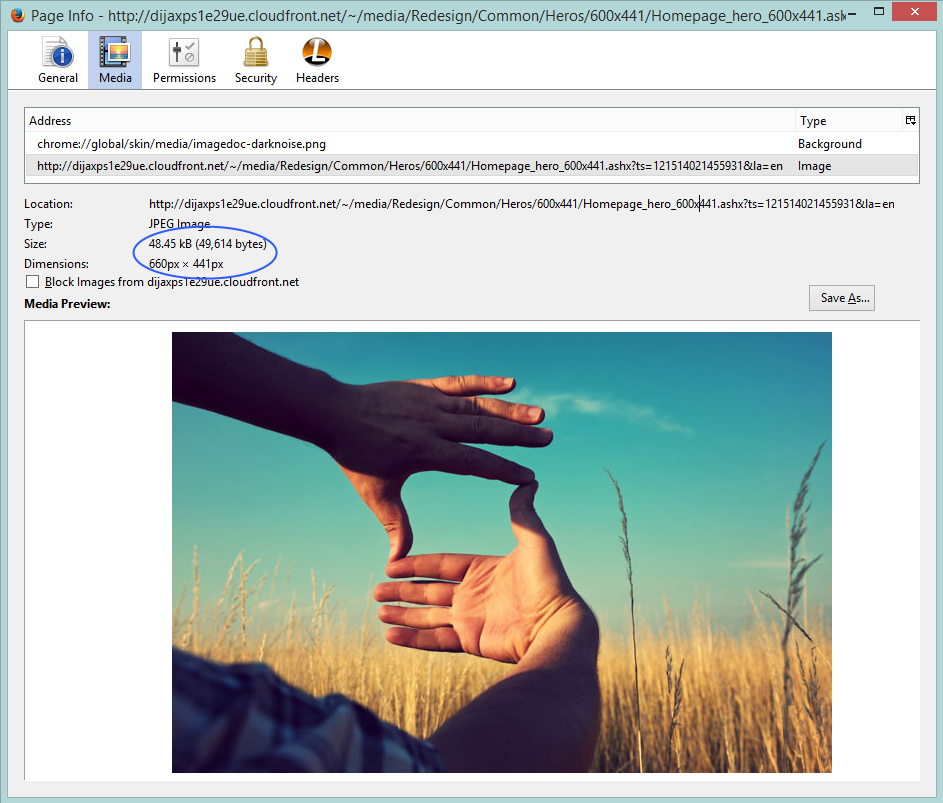
Below is the image I found from Sitecore Website's Homepage, which is having dimensions of 660px × 441px and having size of 48.45 kB (49,614 bytes). Image: http://dijaxps1e29ue.cloudfront.net/~/media/Redesign/Common/Heros/600x441/Homepage_hero_600x441.ashx?ts=121514021455931&la=en


Now if I request Sitecore to produce image with less resolution. i.e., with width of 600px. So, it generates an image of dimensions of 600px × 401px and having size of 57.4 kB (58,778 bytes). Image: http://dijaxps1e29ue.cloudfront.net/~/media/Redesign/Common/Heros/600x441/Homepage_hero_600x441.ashx?ts=121514021455931&la=en&w=600


Is it a bug from Sitecore?

No. But Sitecore by default uses "Lossy Compression Algorithm" to resize images, so reducing image dimensions will not reduce file size. Also, Sitecore uses 95% of image quality by default, that will generate image with bigger file size. To know more about it, you can check code from Sitecore.Resources.Media.ImageEffectsResize class ResizeImageStream() function.
<setting name="Media.UseLegacyResizing" value="false" />
<setting name="Media.Resizing.Quality" value="95" />
Reducing above quality setting may give us image with less file size but should we compromize with quality of image?

Then how to solve this?

There is an alternate way Sitecore gives which was the default behavior in Sitecore in earlier versions that is by enabling Sitecore's ImageLegacyResizing. You can know more about it from Sitecore.Resources.Media.ImageEffectsResize class ResizeLegacy() function. You can do below settings for getting reduced file size. Thank to Sitecore Support guy (Paul Kravchenko) for guiding me in this direction.
<setting name="Media.UseLegacyResizing" value="true" />
<setting name="Media.InterpolationMode" value="Low" />

Media.UseLegacyResizing
This setting controls whether to use legacy resizing (ie. bypass the Sitecore.ImageLib library).

Possible values can be:
true
false (Sitecore's default value)


Media.InterpolationMode
The interpolation mode to use when resizing images, which are available on System.Drawing.Drawing2D.InterpolationMode enum. Read more about InterpolationMode. We can any of below values as per our need.

Possible values can be:
Bicubic
Bilinear
Default
High (Sitecore's default value)
HighQualityBicubic
HighQualityBilinear
Low
NearestNeighbor

Again, Sitecore defines these settings in configuration file so values of the setting remains same for each image resize, so not that much useful to get a generic solution. Eager to know if someone has such generic solution to resize any kind of image, by maintaining quality with reduced file size what Photoshop or Paint.Net gives.

Sitecore MVP 2015 - Achievement Unlocked Once Again!


Feeling proud that I am honored to be selected as "Technology Most Valuable Professional (MVP)" once again by Sitecore. Here is the list of of all Sitecore Technology MVPs 2015: http://www.sitecore.net/Events/Public-MVP-site/MVPs-2015/Technology.aspx

I want to thank everyone who frequented my blogs, my family, coworkers, Sitecore community, my employer - Investis and yes Sitecore!


Sitecore Multilingual Item Alias

Sitecore by default provides Item Aliases for single language, refer my earlier post regarding Sitecore Aliases. One good request came to Sitecore SDN Forums for achieving aliases for multiple languages in Sitecore so thought to post about it.

What we want to achieve is, when a request come for an alias, the content of the Linked Item should come with selected language.

How to achieve?

  1. In the Alias template (/sitecore/templates/System/Alias), add a new field Linked Language with DropLink field.
    So, when a request comes like http://domain/idioma/, it should serve the Products page with es-ES language.


  2. Override the AliasResolver like below:
    namespace SitecoreTactics.HttpRequestPipeline
    {
        public class MultilingualAliasResolver : HttpRequestProcessor
        {
            public override void Process(HttpRequestArgs args)
            {
                Assert.ArgumentNotNull((object)args, "args");
                if (!Settings.AliasesActive)
                {
                    Tracer.Warning((object)"Aliases are not active.");
                }
                else
                {
                    Database database = Context.Database;
                    if (database == null)
                    {
                        Tracer.Warning((object)"There is no context database in AliasResover.");
                    }
                    else
                    {
                        Profiler.StartOperation("Resolve alias.");
                        if (database.Aliases.Exists(args.LocalPath) && !this.ProcessItem(args))
                            this.ProcessExternalUrl(args);
                        Profiler.EndOperation();
                    }
                }
            }
    
            private void ProcessExternalUrl(HttpRequestArgs args)
            {
                string targetUrl = Context.Database.Aliases.GetTargetUrl(args.LocalPath);
                if (targetUrl.Length <= 0)
                    return;
                this.ProcessExternalUrl(targetUrl);
            }
    
            private void ProcessExternalUrl(string path)
            {
                if (Context.Page.FilePath.Length > 0)
                    return;
                Context.Page.FilePath = path;
            }
    
            private bool ProcessItem(HttpRequestArgs args)
            {
                bool aliasFound = false;
                string alias = args.LocalPath;
                if (alias.Length > 0)
                {
                    Item obj = ItemManager.GetItem(FileUtil.MakePath("/sitecore/system/aliases", alias, '/'), Language.Invariant, 
                        Version.First, Sitecore.Context.Database, SecurityCheck.Disable);
                    if (obj != null)
                    {
                        LinkField itemField = (LinkField)obj.Fields["linked item"];
                        string language = obj["linked language"];
                        if (!string.IsNullOrEmpty(language) && itemField!= null)
                        {
                            Item langItem = Sitecore.Context.Database.GetItem(new ID(language));
                            if (langItem != null)
                            {
                                Language lang = Language.Parse(langItem.Name);
                                Item item = Sitecore.Context.Database.GetItem(itemField.TargetID, lang);
                                if (item != null)
                                {
                                    this.ProcessItem(args, item);
                                    aliasFound = true;
                                }
                            }
                        }
                        else if (itemField!=null)
                        {
                            Item item = Sitecore.Context.Database.GetItem(itemField.TargetID);
                            if (item != null)
                            {
                                this.ProcessItem(args, item);
                                aliasFound = true;
                            }
                        }
                    }
                }
    
                return aliasFound;
            }
    
            private void ProcessItem(HttpRequestArgs args, Item target)
            {
                if (Context.Item != null)
                    return;
                Context.Item = target;
                Context.Language = target.Language;
            }
        }
    }
    
  3. In Web.config, replace the Sitecore's AliasResolver and add our custom overridden MultilingualAliasResolver as below:
    <!--<processor type="Sitecore.Pipelines.HttpRequest.AliasResolver, Sitecore.Kernel" />-->
    <processor type="SitecoreTactics.HttpRequestPipeline.MultilingualAliasResolver, SitecoreTactics" />
    

Finally we are able to use multilingual aliases.

Note:Above code works only for Linked Items which are Sitecore Internal Links.

Browser Language Based Content Negotiation

Are you willing to change sitecore website content language based on user's browser preferences? We can achieve this using Content negotiation. Content negotiation is a mechanism to serve different versions of a page or document based on browser's preferences.

For example, a user wants to see information in German, if possible, else English will do. Browsers indicate their preferences by headers in the request. To request only German representations, the browser would send below headers:

Accept-Language: de

As an example of a more complex request, this browser has been configured to accept German and English, but prefer German. In such situation, browser would send below headers:

Accept-Language: de; q=1.0, en; q=0.5


Users can set these preferences in the browser itself. Below is given example of Firefox.

How Browser Based Language Content Negotiation will work

Sitecore provides LanguageResolver, which first checks that the Http Request contains language in Query String (using sc_lang parameter) or in File Path. If the language is found, it will use that language as a context language, otherwise will consider site's default language as the context language.

To achieve our requirement, if the language is not found in the Query String or File Path, we will add one more check to see Language in User Languages in Request Header (Or Accept-Language request header). We can get multiple languages in the request header. So, we will give first priority to the language which is available to serve from our site.

We can get the browser's preferred languages using below code in .NET.

string[] languages = HttpContext.Current.Request.UserLanguages;

Let's see how to achieve in Sitecore

Step 1: Override LanguageResolver

Do below code to override Sitecore's default LanguageResolver:
namespace SitecoreTactics.HttpRequestPipeline
{
    public class LanguageResolver : Sitecore.Pipelines.HttpRequest.LanguageResolver
    {
        public override void Process(HttpRequestArgs args)
        {
            Assert.ArgumentNotNull((object)args, "args");
            Language languageFromRequest = this.GetLanguageFromRequest(args.Context.Request);
            if (languageFromRequest == (Language)null)
                return;
            Context.Language = languageFromRequest;
        }

        private Language ExtractLanguageFromQueryString(HttpRequest request)
        {
            string name = request.QueryString["sc_lang"];
            if (string.IsNullOrEmpty(name))
                return null;
            Language result;
            if (!Language.TryParse(name, out result))
                return null;
            else
                return result;
        }

        private Language GetLanguageFromRequest(HttpRequest request)
        {
            Language languageFromQueryString = this.ExtractLanguageFromQueryString(request);
            if (languageFromQueryString != null)
                return languageFromQueryString;
            else if (Context.Data.FilePathLanguage != null)
                return Context.Data.FilePathLanguage;
            else
            {
                return GetLanguageFromBrowser(request);
            }
        }

        // Added function to allow browser based language content negotiation
        private Language GetLanguageFromBrowser(HttpRequest request)
        {
            Language result;
            if (HttpContext.Current.Request.UserLanguages!= null && HttpContext.Current.Request.UserLanguages.Length > 0)
            {
                string[] languages = HttpContext.Current.Request.UserLanguages;
                string chosenLanguage = string.Empty;

                foreach (string language in languages)
                {
                    string[] langParts = language.Split(';');
                    if (langParts.Length > 0)
                    {
                        if (Sitecore.Context.Database.GetItem("/sitecore/system/languages/" + langParts[0]) != null)
                        {
                            chosenLanguage = langParts[0];
                            break;
                        }
                    }
                }
                if (!Language.TryParse(chosenLanguage, out result))
                    return (Language)null;
                else
                    return result;
            }
            else
                return (Language)null;
            
        }
    }
}

Step 2: Configure overridden LanguageResolver in web.config

In Web.config, replace the Sitecore's LanguageResolver and add our custom overridden LanguageResolver as below:
<httpRequestBegin>
    <!--<processor type="Sitecore.Pipelines.HttpRequest.LanguageResolver, Sitecore.Kernel" />-->
    <processor type="SitecoreTactics.HttpRequestPipeline.LanguageResolver, SitecoreTactics" />
</httpRequestBegin>

There's more

Same way, we can use many other request parameters to negotiate user experience like.
  • User-Agent: User agent of the browser, which Sitecore uses in DeviceResolver 
  • Accept: Content types the browser prefers, which we can use to provide preferable content types of media or content.
  • Accept-DateTime: It is a header to retrieve content of any specific date-time.

We can use all these locale settings to enable them to provide information in the local format.
  •  What numeric formats does the user expect?
  • How should dates and times be formatted?
  • Should measurements be metric (centimeters, kilometers, liters) or imperial (inches, miles, gallons)?
  • What is the user's time zone?
  • Does the user use Letter size paper, or A4?
  • What shoe and clothing sizing systems should be used?
  • What is the user's physical location?

Dot or Space in URL gives 404 Error - Fixed

Our application security certification program raised a security issue on our Sitecore Staging and Live environment. "Any URL where folder or file name ends with Space or Dot gives 404 - The resource cannot be found error."

For example, accessing URLs like
http://sitecore72/sitecore%20/login
or
http://sitecore72/sitecore./login

Both gives below error. Same, if we do same kind of request on any live site, it gives same error like for URL: http://sitecore/CMS /Sitecore/

Tricks we already applied, what failed:

  • Tried to catch this error from Application_Error event from Global.asax, but no luck found. 
  • We also tried to handle it from web.config using CustomErrors, but again no luck.

Solution we found at last:

After checking many ASP.NET sites, including Microsoft website, this issue was found on majority of sites. For example, http://www.microsoft.com/security /default.aspx, it gives same error. So finally we concluded that this bug is not from Sitecore side, but it's something what .NET is playing with.

After reading more on net, found below setting. The value of relaxedUrlToFileSystemMapping attribute should be true to solve this issue, by default its value is false in ASP.NET and Sitecore:

    <httpruntime relaxedurltofilesystemmapping="true" />
Now, after applying this fix, the above URL on Staging environment sends user to NotFound error page and on live environment, it opens a valid page by ignoring Dot or Space.

What relaxedUrlToFileSystemMapping attribute does?

It indicates whether the URL in an HTTP request is required to be a valid Windows file path. It determines how the URL in an incoming HTTP request will be validated.

If this property is false, the URL is validated by using the same rules that determine whether a Windows file system path is valid.
If it is true, it will not validate any folder or file name.


Note: Later on we found that Sitecore has solved this bug from Sitecore 7.2 Update-2 by changing same attribute, they have not mentioned this bugfix in their release notes.


Solved Sitecore PDF Loading Issue

Are getting problem in viewing PDF files in your newly upgraded Sitecore environment? We came across the same bug while upgrading Sitecore to version 7.2 that in some browsers while opening PDF files, they get stuck. Surprisingly after that, pressing Ctrl+F5 was allowing to view PDF file. See below screenshot when the downloading stuck:

Sitecore PDF viewing stuck randomly

Workaround from Sitecore

In Sitecore 7.2, they gave workaround to solve the issue by forcing download of PDFs by doing below setting:
        <mediaType name="PDF file" extensions="pdf">
          <mimeType>application/pdf</mimeType>
          <forceDownload>true</forceDownload>
        </mediaType>
But, this is not the solution for our problem. We can't say our clients to download and view the PDF, it should be viewed in browser itself. We applied many tricks, and finally we solved it.

So, what was the issue?

After reverse engineering MediaRequestHandler, we came to know that Sitecore is downloading PDF content partially in range using HTTP 206 Status Code, which might be creating problems in different browser. In Sitecore versions earlier than before 6.5, Sitecore was downloading PDF or any other media in one go, which never failed.

So, one thing was sure that this bug was just because of Range Retrieval mechanism provided by Sitecore or the plug-in our browser does not support it. See below screenshot which shows how Sitecore downloads PDF content in range.

 Sitecore downloads PDF content partially in range

Final Solution

We just tried disabling the Range Retrieval Mechanism as below and found the bug resolved.
    <setting name="Media.EnableRangeRetrievalRequest" value="false" />
Many thanks to our colleague Sandeep Gupta who helped in the investigation.

Enjoy accurate media download now!!

Other Sitecore 7.2 Bugs Solved!


Sitecore Bug - Media Attach Detach Getting Slower

While upgrading to Sitecore 7.2, we faced another big bug regarding slowness. When we attach or detach media file or edit image file online, we found heavy load and slowness on DB server which subsides subsequently, but the browser becomes unresponsive during this time. And slowness is observed across CM platform. (We have not checked but this issue is found from Sitecore 6.5 onwards)

We have New Relic configured on CM server, which shows slow transactions. The stacktrace in all cases has same portion mentioned below:
Sitecore.Data.DataProviders.Sql.SqlDataApi.CreateReader(:0)
Sitecore.Data.DataProviders.Sql.SqlDataProvider.Exists(:0)
Sitecore.Data.DataProviders.Sql.SqlDataProvider.CheckIfBlobShouldBeDeleted(:0)
Sitecore.Data.DataProviders.Sql.SqlDataProvider.RemoveOldBlobs(:0)
Sitecore.Data.DataProviders.Sql.SqlDataProvider.SaveItem(:0)
Alongwith above stacktrace, we also found following as slowest SQL operation which is implemented in CheckIfBlobShouldBeDeleted method, which tells whether blob is used or not:
SELECT tmp.[Id] FROM 
   (SELECT sf.[Id] FROM [SharedFields] sf 
      WHERE sf.[Value] LIKE @blobId 
    UNION 
    SELECT uf.[Id] FROM [UnversionedFields] uf 
      WHERE uf.[Value] LIKE @blobId 
    UNION 
    SELECT vf.[Id] FROM [VersionedFields] vf 
      WHERE vf.[Value] LIKE @blobId 
    UNION 
    SELECT af.[FieldId] [Id] FROM [ArchivedFields] af 
      WHERE af.[Value] LIKE @blobId 
    ) tmp
Credit goes to Muktesh Mehta for drilling down the issue and Sergey Kravchenko from Sitecore Support who gave us solution for it.

We raised this to Sitecore with all above information, Sitecore provided a new config file and assembly for overriding SqlServerDataProvider, which solved our issue. You can get the assembly and config from Sitecore Support using Ticket# 412563.

Hope, this will help you if you are facing the same issue!

Media Performance Related Posts:
- IRequiresSessionState slowing down Sitecore Media Requests
- Improve Sitecore Media Performance using Reverse Proxy
- Upload Sitecore media items in selected languages

Other Sitecore 7.2 Bugs Solved!


Bug Fix in Sitecore 7.2 Publish Related Items

While testing our newly upgraded Sitecore 7.2 solution, we faced a nasty bug in newly released feature of Publish Related Items

When we ticked Publish Related Items checkbox to publish all references, it publishes all the reference items three times. You are not believing, right? Even we too when our QA raised this to us. Such a nasty bug this is!!

If you have enabled traceToLog like below for UpdateStatistics processor,
    <processor type="Sitecore.Publishing.Pipelines.PublishItem.UpdateStatistics, Sitecore.Kernel" runIfAborted="true">
        <traceToLog>true</traceToLog>
    </processor>
you will find below logs which tells the story of the bug that item named Images gets published three times.
17268 16:13:23 INFO  ##Publish Item: Name=Images, Uri=sitecore://master/{15451229-7534-44EF-815D-D93D6170BFCB}?lang=en&ver=1, Operation=Updated, ChildAction=Allow, Explanation=Version 'en_1' was published.

How we solved this bug:

While investigating and spending few hours we found that Sitecore is not able to remove duplicate items which are added as reference items, which we can solve by overriding RemoveDuplicateReferrers method of ProcessQueue processor as below:

Step 1: Replace below line from web.config

    <processor type="Sitecore.Publishing.Pipelines.Publish.ProcessQueue, Sitecore.Kernel"/>
with:
    <processor type="SitecoreTactics.Publishing.Pipelines.Publish.ProcessQueue, SitecoreTactics"/>

Step 2: Override the ProcessQueue processor

We have two alternatives to solve this, one is given by Ivan Sheyenko from Sitecore Support and one solved by our colleague Muktesh Mehta.

Below is the solution provided by Sitecore Support, which still needs improvements:
public class ProcessQueue : ProcessQueue
{
    // Methods
    protected override IEnumerable<publishingcandidate> RemoveDuplicateReferrers(IEnumerable<publishingcandidate> referredItems, PublishContext context)
    {
        Assert.ArgumentNotNull(referredItems, "referredItems");
        Assert.ArgumentNotNull(context, "context");
        List<publishingcandidate> list = new List<publishingcandidate>();
        foreach (IEnumerable<publishingcandidate> enumerable in context.Queue)
        {
            foreach (PublishingCandidate candidate in enumerable)
            {
                list.Add(candidate);
            }
        }
        List<publishingcandidate> list2 = new List<publishingcandidate>();
        foreach (PublishingCandidate candidate2 in referredItems)
        {
            if (!(list.Contains(candidate2) || list2.Contains(candidate2)))
            {
                list2.Add(candidate2);
            }
        }
        return list2;
    }
}

Below is the solution done by Muktesh Mehta, which is more useful in our architecture:
public class ProcessQueue : ProcessQueue
{
    // Methods
    protected virtual System.Collections.Generic.IEnumerable<publishingcandidate> RemoveDuplicateReferrers(System.Collections.Generic.IEnumerable<publishingcandidate> referredItems, PublishContext context)
        {
            Assert.ArgumentNotNull(referredItems, "referredItems");
            Assert.ArgumentNotNull(context, "context");
            List<id> idCollection = new List<id>();
            System.Collections.Generic.List<publishingcandidate> finalReferredItems = new System.Collections.Generic.List<publishingcandidate>();
            foreach (var referred in referredItems)
            {
                if(!idCollection.Contains(referred.ItemId))
                {
                    idCollection.Add(referred.ItemId);
                    finalReferredItems.Add(referred);
                }
            }
            return finalReferredItems.AsEnumerable();
        }
}
Now, enjoy bug-free Sitecore Related Item Publishing.. Njoy!

Other Sitecore 7.2 Bugs Solved!


Sitecore Tactics Blog Completed One Year!


Today is a special day for the Sitecore Tactics, which completed 1 year today. I started blogging on Sitecore exact one year back on the same date with lot of excitement, passion and dream. I continued putting my efforts and serving best knowledge and tactics to my readers so that I can contribute in this blogging community.

Today, it is great co-incidence, I wrote my first Sitecore Blog on 27th June, 2013, today is 27th June, 2014, and today my Sitecore blog visits crossed figure of 27,000 and my birthday comes on date 27th (What a coincidence). For total 40 posts, average 74 pageviews came to this blog per day in last one year and 4,000+ requests per month from last 3 months.

Thank you all my blog readers all around the world for reading my blogs. Increasing blog visits really encouraged me to write more and more blogs.

IRequiresSessionState slowing down Sitecore Media Requests


For last few weeks we faced a performance issue on our Sitecore production servers. Page response time was substantially increased by 50% and getting slowness in full page loading. While investigation we found that this was just because of our customized MediaRequestHandler.

Our requirement was to display some Disclaimer Page when a user request for some Sitecore media files (not for any image), after accepting disclaimer we can continue to download requested media. All other media items should be served directly.

We used session for managing this disclaimer. For using session in the MediaRequestHandler, we implemented iRequiresSessionState interface in it. See below code snippet
    class CustomRequestHandler : Sitecore.Resources.Media.MediaRequestHandler, IRequiresSessionState
    {
        protected override bool DoProcessRequest(HttpContext context)
        {
            if (context.Request.Url.ToString().ToLower().Contains("/~/media/files/"))
            {
                // Check session, if session does not available, then send it to disclaimer
                // Once user accepts Disclaimer, generate a session with user details.
            }
            else
            {
                // Proceed all image requests
                base.DoProcessRequest(...);
            }
        }
    }

So, what the reason for the slower page rendering? Yes, that's IRequiresSessionState which was a halts in performance.

Can IRequiresSessionState really make my page slower?

Below image shows how ASP.NET Session state works:


Now we can definitely say YES, it can slow down. State access requires that the aspx pages or handler, run sequentially. Each page/handler may read from and write to the session state. To handle this without creating any errors in the session state, .NET will only run one at a time using locking mechanism, so no handlers will run when the aspx page itself is running.

Tactics:
  • Can we customize handler not to use session state?
    - No, this will disable session so we cannot achieve disclaimer functionality
  • We can decide the request needs session or not and use session dynamically.
    - Is it possible? Yes, it is, using HttpModules

Solved by Dynamically deciding Session State Behavior programmatically

Changing ASP.NET session state behavior dynamically is possible only using HttpModules or Global.asax. It is not possible in HttpHandlers or other code behind. This solution is possible only in .NET 4.0 and later. Yes, we can define it at Page Directives but that's static.

As per our requirement, we have to show Dislaimer for selected Sitecore Media Files only (Not for any Media Images), we thought to create a HttpModule, which will check whether the request is for media files or images. If it is a file, then enable session state and if it is an image, disable session state.

Step-1:

We removed IRequiresSessionState from our CustomMediaRequestHandler, so it will not use Session State directly.

Step-2:

Created HttpModule, which will decide whether to use Session State or not.
    public class CustomMediaRequestSessionModule : IHttpModule
    {
        public void Init(HttpApplication application)
        {
            application.BeginRequest += (new EventHandler(this.Application_BeginRequest));
        }

        private void Application_BeginRequest(Object source, EventArgs e)
        {
            HttpApplication application = (HttpApplication)source;
            var CurrentContext = HttpContext.Current;

            if (CurrentContext.Request.Url.ToString().ToLower().Contains("/~/media/files/"))
            {
                // Files need Disclaimer functionality, so session needed
                CurrentContext.SetSessionStateBehavior(System.Web.SessionState.SessionStateBehavior.Required);
            }
            else if (CurrentContext.Request.Url.ToString().ToLower().Contains("/~/media/images/"))
            {
                // Images do not need Disclaimer, so no session needed
                CurrentContext.SetSessionStateBehavior(System.Web.SessionState.SessionStateBehavior.Disabled);
            }
        }
        
        public void Dispose()
        {
        }
    }

Step-3:

Now, in web.config, register this module under system.webServer/modules section:
 <add type="SitecoreTactics.Resources.Media.CustomMediaRequestSessionModule, SitecoreTactics" name="CustomMediaRequestSessionModule" /> 

And now we checked Page Response time, now feeling heavenly. All problem gone, Page Response Time now dropped down to earlier stage.

Good reads for improving Sitecore Media Item Performance

Improve Sitecore Media Performance using Reverse Proxy

- Are you facing slowness in serving media library items?
- Are you getting increased response time due to media requests?
- Is your Sitecore instance serves media slower even if you have applied output (response) cache?

Then this post will surely help you, which describe how we can improve Sitecore Media Library performance by implementing Reverse Proxy Server.

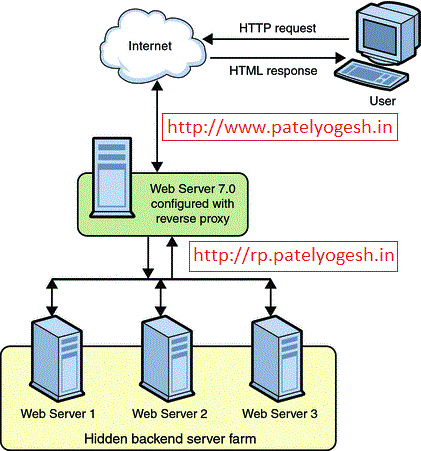
How Reverse Proxy will help to improve media performance?

The Reverse Proxy will play a role being a proxy between the client and Sitecore web server. Reverse Proxy provides caching mechanism, which caches all media items. So, once any user has requested any media file from server, will be get cached on Reverse Proxy itself. So, from second time onwards, Reverse Proxy will not get media from Sitecore Web Server but will serve it from its own cache.

We can use URL Rewrite Module and Application Request Routing (ARR) to implement a Reverse Proxy Server.


Step - 1 : Install ARR and Url Rewrite on IIS?

  1. Setup IIS 7.0+ on your Server which will work as Proxy.
  2. Install URL Rewrite module. You can download it from here.
  3. Install ARR module. You can download it from here.

Step - 2 : Configure URL Rewrite module:

  1. Create a new Website in IIS or use Default website, and click on Website, then click on URL Rewrite option under IIS section
  2. Edit inbound rules as below:


    Above configuration shows that if requested host is www.patelyogesh.in, then this rule will be applied for its all requests (*).
  3. Configure Rewrite URL for above configurations as below. This will make sure that all requests coming from http://www.patelyogesh.in/ will be rewrited to http://rp.patelyogesh.in/*.


    When we apply above configurations, it will generate a web.config file under the website directory, which will look like below:

    <system.webServer>
        <rewrite>
          <rules>
             <rule name="Sitecore-Production" stopProcessing="true">
                 <match url="(.*)" />
                 <action type="Rewrite" url="http://rp.patelyogesh.in/{R:1}" />
                 <conditions>
                     <add input="{HTTP_HOST}" pattern="www.patelyogesh.in" />
                 </conditions>
             </rule>
          </rules>
        </rewrite>
      </system.webServer>
    

    We can also configure multiple domain's URL rewrites in the same way.

Step - 3 : Configure ARR (Application Request Routing) Cache

  1. Select the Server Node, now select Application Request Routing Cache option.

  2. Add Drive where the caching will be stored by ARR Module. The below image shows how we can configure ARR module and how it will look.
  3. Make sure the Identity user of the Application Pool should have read/write access of the drives configured here. So, ARR will store all cache files here only.

  4. Enable Proxy As per below image, click on Proxy Settings on the right side bar and enable Proxy.


Finally, Reverse Proxy setup finished, took just 15 minutes only!!

Now, Request to http://www.patelyogesh.in/. This will serve you content from http://rp.patelyogesh.in itself by traversing through Reverse Proxy. It's really easy and simple, isn't it?

How to confirm Reverse Proxy working fine?

We can provide our Custom Response Headers using Proxy Settings from ARR Cache option as shown in above image. So, if Reverse Proxy is working well, we will get those headers in response.

How to confirm ARR Caching working fine?

In File Explorer, open the Drive folder we configured in ARR Cache settings. We will get all files cached by ARR.

Cache for the URL: http://www.patelyogesh.in/~/media/Images/yogi.png (Rewrited URL: http://rp.patelyogesh.in/~/media/Images/yogi.png) will be stored at : <website root>\rp.patelyogesh.in\~\media\Images\yogi.png.full.

How to delete ARR cache programmatically?

In ARR Cache settings, you will find a button Delete Specific Cached Objects which can clear specific URL cache. It also supports wild cards for clearing cache.

We can create a web service on the ARR website, which will get a URL as input and will clear cache accordingly using below code. Now, on each media item publish from Sitecore, we will clear the ARR cache. We can decice How and when to make a call to the ARR web service to cache clear according to our architecture.

Source code to clear ARR cache programmatically:
[WebMethod]
public static ClearCache(string urlToCacheClear)
{
      var url = urlToCacheClear == "ALL" ? string.Empty : urlToCacheClear;

      var m = new ServerManager();
      var x = m.GetApplicationHostConfiguration().GetSection("system.webServer/diskCache");
      var method = x.Methods["FlushUrl"].CreateInstance();
      method.Input.SetAttributeValue("url", url);
      method.Execute();
}

Enjoy Reverse Proxy! Enjoy improved Sitecore Media Library performance!!

Good reads on Reverse Proxy:
- http://www.agarwalnishant.com/2013/04/improve-sitecore-media-library.html

- http://www.iis.net/learn/extensions/url-rewrite-module/reverse-proxy-with-url-rewrite-v2-and-application-request-routing

How Sitecore media cache Works?

Sitecore stores all media cache to file system, unlike all other caches, stored in RAM. Media items are stored in database, so media cache is required to reduce database calls and serve media files faster to end-user. Let's understand Sitecore media cache mechanism.

How Media Cache Created?

- When we upload a new media file to Sitecore, its media cache is created in Website\App_Data\MediaCache\<sitename>\<Hashcode of MediaId> folder. Sitecore assigns unique MediaId to each media item, which gets changed on each modification of media item.

- For each media item, Sitecore creates an INI file with name of MediaId in the respective folder, which stores different attributes of the media file inside it.

See below image as a reference:


In above case, this media's MediaId is "8c683332453741038b8876bf5915d188", so the ini file (8c683332453741038b8876bf5915d188.ini) is generated with name of MediaId. On right side, all information is stored in same file. dataFile shows physical media file name 7b4a5e3934914d57a390bedcab67380c.jpg.

Different attributes in INI file:
Attribute Description
Key height, width, thumbnail, background color, etc. image parameters passed by query string. You can get better idea by reading my earlier Blog Post on Sitecore Image Control Parameters
extension Extension of  media file.
headers Content Type, etc.
datafile Physical file name stored as media cache in same folder.

How Media Cache Deleted?

Sitecore provides a cleanup agent to clear older media files, which clears media files every specified interval of time. By default it clears all media cache files created 90 days ago. See below settings in web.config:
    
     <agent type="Sitecore.Tasks.CleanupAgent" method="Run" interval="06:00:00">
        <!-- Specifies files to be cleaned up.
             If rolling="true", [minCount] and [maxCount] will be ignored.
             [minAge] and [maxAge] must be specified as [days.]hh:mm:ss. The default value
             of [minAge] is 30 minutes.
             [strategy]: number of files within hour, day, week, month, year
             [recursive=true|false]: descend folders?
        -->
        <files hint="raw:AddCommand">
          <remove folder="/App_Data/MediaCache" pattern="*.*" maxAge="90.00:00:00" recursive="true" />
        </files>
      </agent> 

Media Cache Hidden Secrets

  • If a user has requested a media file with different querystring parameters, then Sitecore creates different media files runtime and stores all those files in same folder where original media file is stored. Also, all these combinations are stored in the same INI file itself.

    You can try accessing your media image with different parameters like below and check media cache:
    -http://sitecoreblog.patelyogesh.in/~/media/Images/myimage.jpg
    -http://sitecoreblog.patelyogesh.in/~/media/Images/myimage.jpg?h=100
    -http://sitecoreblog.patelyogesh.in/~/media/Images/myimage.jpg?w=200
  • When a media item is updated, Sitecore creates a new media cache with new INI file and a new media file even though the media file(blob) remains same or item already has same media cache. So, there will be duplicate media cache but Sitecore will refer to latest file only.
  • As we know Sitecore creates media cache in folder with name of Context Site. So, if one media file is accessed by two different Sites (SiteContext), then media cache will be generated for both sites, means in both sites' folders. For example, When media item is accessed by Content Editor, cache will be created for Shell site and when accessed by Website, then it will be created for Website.

How to read/create media cache programatically?

Yes, it's possible to create or read media cache by Sitecore API:
    
    ///////////////////////////////////
    // Read Media Cache
    ///////////////////////////////////

    MediaRequest request; // media parameters like height, width, etc.
    Sitecore.Resources.Media.Media media // item for which you want to read media cache.

    // set request.Options
    // set media

    // This is the media cache stored in MediaStream
    MediaStream mStream = MediaManager.Cache.GetStream(media, request.Options);


    ///////////////////////////////////
    // Write Media Stream to Media Cache
    ///////////////////////////////////

    // Manipulate your media file and set it into MediaStream

    // store the media stream to media cache.
    MediaManager.Cache.AddStream(media, request.Options, mStream, out outStream);

We can know more about Media Cache understanding below classes using Reflector:
- Sitecore.Resources.Media.MediaCache
- Sitecore.Resources.Media.MediaCacheRecord